How-To Guides
Sign in to Tapis
| Situation | What happens |
|---|---|
| Standalone app | Login with Tapis → OAuth2 redirect → session cookie. Logout clears it. |
| Embedded in TapisUI | The host's Tapis token is picked up automatically; no login/logout is offered. |
| Local dev, no Tapis client | Set TAPIS_USE_MOCK=true in backend/.env and /login gives you a mock session so the app stays runnable. |
Your token is what the engine submits jobs as, so runs are owned by, and charged to, the person who launched them.
Point a step at files on Tapis
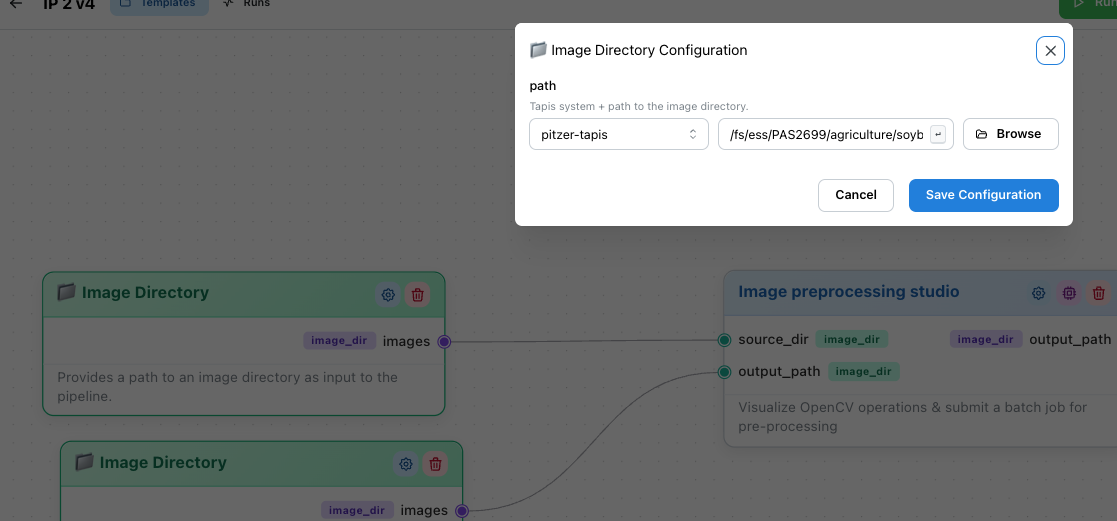
Any path field rendered by the generic form (schema type tapis_path) gives you
a system dropdown plus a path box with a Browse button that opens the
Tapis file explorer scoped to the selected system. Pick a file or a directory
depending on what the field wants; the chosen system is stored alongside the
path, and downstream steps receive the full tapis://system/path URI rather than
a bare path.
Available systems: pitzer-tapis, cardinal-tapis, ascend-tapis,
expanse-tapis, expanse-tapis-static, aws-tapis.
A field with no system chosen yet shows the system from your run defaults. Once you pick a path, the system shown is saved with it, so the step keeps pointing at the same place even if you change your defaults later.
Inputs on the same filesystem as the step's job are mounted into its container, not copied, so large image folders don't slow the job's start. See How inputs reach a job.
Shortcuts
| Where | Press | Does |
|---|---|---|
| In a path box | Enter | Opens Browse at the typed path. |
| In the file browser | Enter | Selects the folder you're in (or the highlighted file, for a file field). |
If you Tab to a folder in the browser and press Enter, it opens that folder instead, so keyboard navigation still works.
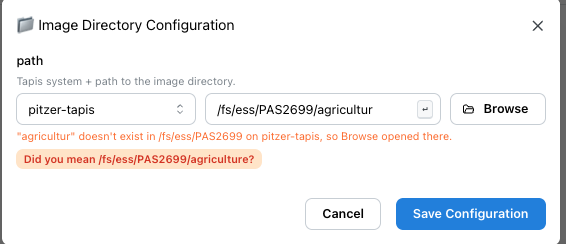
Typos and missing folders. If the typed path doesn't exist, Browse opens the
nearest folder that does and tells you so. When a folder name is close to one
that exists, it offers a fix, such as Did you mean /fs/ess/PAS2699/agriculture?
A path ending in / always opens that folder, even in a file field.
Data that's only on your own machine. Choose My node (not on Tapis) in the system dropdown and type the path as it is on your machine. Browse is off for these. A workflow using one can only run with Deploy to my node; launching it on Tapis explains this instead of starting a run that can't reach your data.
Find a template or run
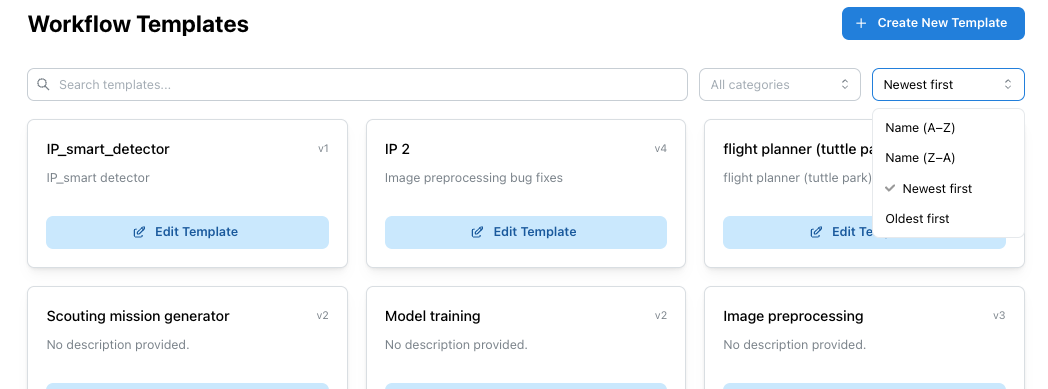
Both lists have a search box, a filter and a sort order:
| List | Search by | Filter by | Sort by |
|---|---|---|---|
| Templates | name or description | category; All / Mine / Shared with me / Public | name (A–Z, Z–A), newest or oldest |
| Past Runs | workflow name or run number | status | newest or oldest, name (A–Z, Z–A) |
Share a workflow
A new workflow is private: only you can see it. To share it:
-
Save the workflow. Only a saved workflow can be shared.
-
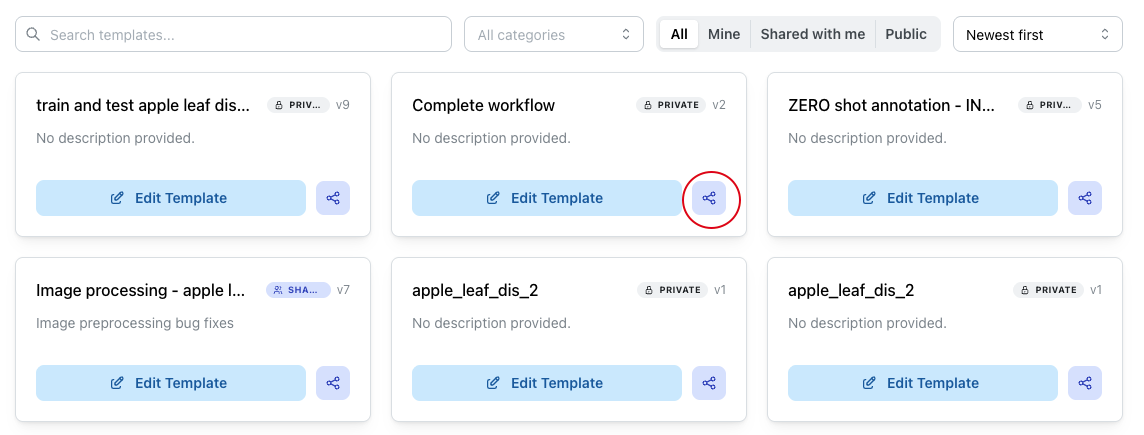
Click Share in the canvas header, or the share icon on the workflow's card in the Templates list.
-
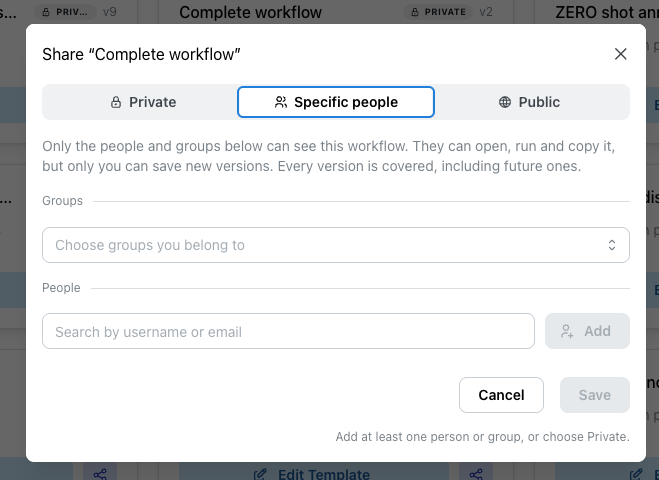
Choose who can see it:
Option Who can see it Private Only you. Specific people The groups and people you pick. Public Every signed-in user. -
For Specific people, pick from Groups (only groups you belong to are listed) and add people by username under People. Remove someone with the ✕ on their name.
-
Click Save.
Good to know:
- Every version is shared, including the versions you save later. You don't need to share again after editing.
- People appear in the picker once they've signed in to the Studio at least once. Ask a colleague to sign in first if you can't find them.
- Switching to Public keeps your list. The groups and people you picked are kept, so switching back to Specific people restores them.
- Only you can change the sharing. People you share with can't re-share it.
- To stop sharing, open Share again and choose Private, or remove the person or group. They lose access straight away. Copies they already made stay theirs.
What people you share with can do
| Action | Owner (you) | Shared with them / Public |
|---|---|---|
| Open it and look at every step's settings | ✓ | ✓ |
| Run it | ✓ | ✓, as themselves |
| Set up a webhook for it | ✓ | ✓, their own webhook, firing as them |
| Save a new version | ✓ | ✗, they use Save as my copy |
| Change who it's shared with | ✓ | ✗ |
| See the other person's runs | ✗ | ✗ |
A run always belongs to the person who launched it. It uses their Tapis login, their charge account and their run defaults, and appears only in their Past Runs. Sharing a workflow never shares your allocation or your runs.
Use a workflow shared with you
Open Templates and filter by Shared with me (or Public). Each card shows who shared it.
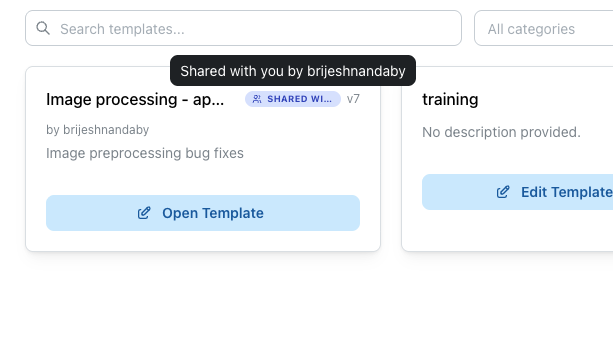
When you open it, a banner says it was shared with you and that you can view and run it.
- Run it as it is: click Run Workflow. If you changed something on the canvas, you're asked to either Run the published version as-is (your changes are ignored) or cancel and make a copy.
- Change it: click Save as my copy. You get version 1 of a new workflow that you own, copied from the last saved version. Your copy starts private, whatever the original was, and later changes to the original don't affect it.
Badges in the Templates list
| Badge | On | Means |
|---|---|---|
| Private | Your workflow | Only you can see it. |
| Shared | Your workflow | Shared with specific people or groups. |
| Public | Any workflow | Every signed-in user can see it. |
| Shared with you | Someone else's | Someone shared it with you, or with a group you're in. Hover to see who. |
Create a user group
Groups let you share with a whole team at once. Click Groups in the top navigation, then New Group. You become the group's first admin.
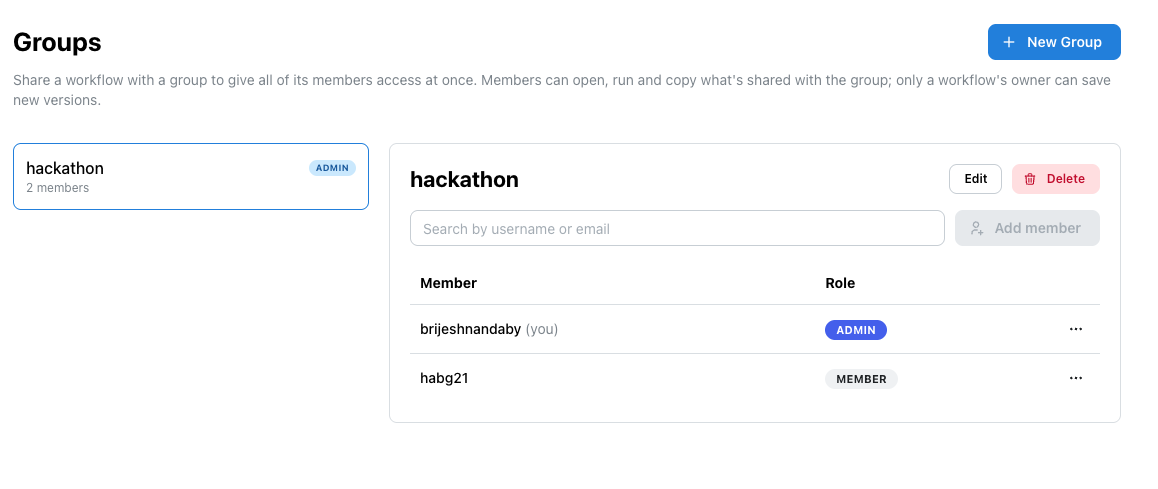
- Admins can rename or delete the group, add and remove members, and make other members admins.
- Members can see who's in the group, share their own workflows with it, and leave it.
A group always keeps at least one admin, so the last admin has to promote someone else before leaving. Deleting a group, or leaving it, removes access to workflows that were shared only through that group.
Switch between light and dark mode
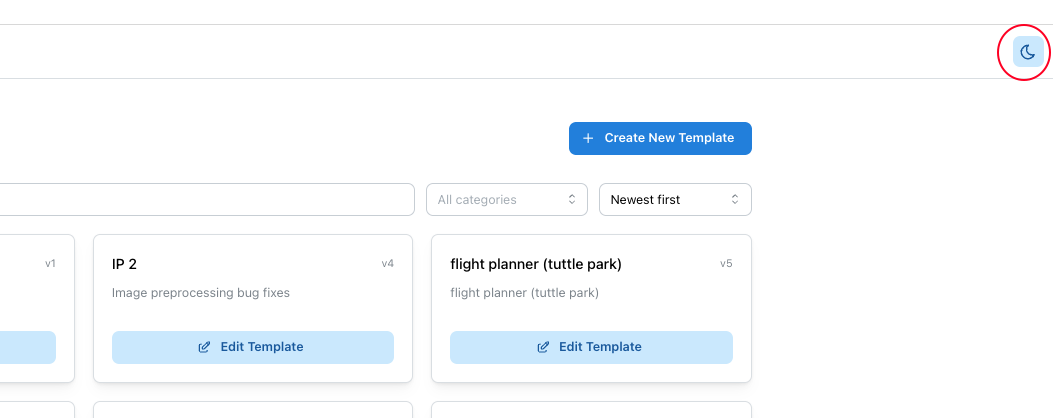
Click the sun/moon icon in the header. Your choice applies everywhere in the Studio, including the canvas and dialogs.
Store an API token as a secret
Some steps need a credential (Weights & Biases, Hugging Face, …). Never type it into a config field — put it in the vault instead:
- Click the ⚙ Secrets icon on the dashboard header.
- Enter a key (e.g.
WANDB_API_KEY), the value, and an optional description, then Add secret.
Secrets are shared across your team and write-only — the list never returns a
value again. A step field of type secret then offers a dropdown of keys, and
only the key is stored on the node, in the saved template, and in the run's
frozen config. The real value is resolved server-side and substituted into the
job spec at submission time only.
Steps that always need one specific secret can reference it directly in their job
template as ${secrets.KEY}, with no per-node field at all — see
docs/adding-a-step-form.md.
Send GPU and CPU steps to different systems
- In the Run workflow drawer, set the CPU steps system and queue — every step with no GPU requirement follows it.
- Set the GPU steps system and queue — every step whose definition declares
"resources": {"gpu": true}follows this one instead. The card lists which steps on your canvas that currently applies to. - To take one specific node off both, open its 🖥 Run Configuration and pick an Execution system there. That pins the step to its own system and queue, ignoring the run's targets. Clearing it returns the step to inheriting.
Archiving stays run-level regardless: a run whose GPU steps are on Expanse and CPU steps on OSC still writes all its artifacts to one place.
Run settings reference
| Section | Field | Meaning |
|---|---|---|
| 1. Run type | One job per step / Single job | One Tapis job per step (default), or the whole pipeline as one job sized from the pipeline-wide maximum. See Run a whole pipeline as one Tapis job. |
| 2. Where each step runs | CPU steps: System, Queue | Where steps with no GPU requirement run. Queues are loaded live from the system, with each queue's limits shown. The system also becomes the default archive system. |
| GPU steps: System, Queue | Where steps declaring a GPU requirement run. Only shown when the canvas has one. | |
| 3. Charge account | Charge account | The allocation to charge (e.g. PAS2699). Prefilled from the template's allocation account. |
| Storage & archive | Work dir | Base dir on the system. Taken from your run defaults; otherwise derived from the CPU system, charge account and your Tapis username. Editable. |
| Archive system | Where step outputs are archived, unless a sink node says otherwise. | |
| Archive dir (optional) | Base directory on the archive system. Blank derives it from Work dir. | |
| Containers dir (optional) | Folder on the exec system holding the step container images. A step that ships its image as an input uses the copy found here instead of downloading it each run. |
Whatever you choose, each step archives under
.../{run_id}/{step_type_key}/{node_id}, so one run's artifacts never collide
with another's.
Every field starts from your run defaults. The settings you launch with are remembered for this workflow, and used the next time you open its drawer.
Run a whole pipeline as one Tapis job
By default each step is its own Tapis job. That gets every step exactly the resources it asks for and lets independent branches run at the same time — but it also means a five-step workflow queues five times, and on a busy allocation the queue wait is usually longer than the compute.
Run workflow → Run type → Single job submits the entire pipeline as ONE Tapis job instead. The steps run one after another inside a single allocation, so there is one queue wait for the whole workflow.
How the one job is sized
One job makes one resource request, so the per-step requests are merged into an envelope that fits every step. The panel shows the arithmetic, and hovering a row lists what each step asked for:
| Field | Merged by | Why |
|---|---|---|
| Nodes, Cores / node, Memory | max across steps | The job has to be able to host the hungriest step. |
| GPUs | max across steps | As above — and only when a step actually wants one. |
| Max runtime | sum across steps | They run one after another in this one allocation. A wall clock of only the longest step would have the scheduler kill the job partway through the pipeline. |
Each number is taken from what the step would really have used on its own: the node's own Run Configuration if it has one, otherwise the step's own job definition. Sources, sinks and panel steps request no compute and are ignored.
GPUs
GPU resources are requested only when some step actually needs one. A pipeline
whose steps are all CPU-only goes to the run's CPU target with no -G request at
all, so it is never queued behind GPU availability it has no use for. As soon as
one step declares a GPU requirement, the whole job goes to the run's GPU target
and asks for the largest GPU count any step wanted. The panel's badge says which
target was chosen, and names the steps responsible.
What you give up
- Concurrency. Independent branches that would have overlapped now run in sequence. That is why runtime is summed.
- Per-step checkpoints. Resume on a single-job run re-runs the whole pipeline: the allocation it ran in is gone, so there is no mid-job state to pick up from. Resuming from a specific step is refused rather than silently ignored. Per-step mode still gives you checkpoints (see Stop, resume, and recover).
- Per-step exec systems. One job has one exec system, so a node pinned to its own is ignored — with a warning naming it.
- Steps that run inside the platform. A step like Annotation Format Adapter executes Python in the backend, not in a container, so there is nothing for the one job to run. Those pipelines are refused up front, naming the step, and Verify & launch is disabled rather than offering a run that would fail.
Everything else is unchanged: the same run page, the same per-step statuses and artifact paths, the same archive layout. The job's own report is read back out of the archive when it finishes, so a single job still fills in each step's outputs individually instead of showing one opaque bar.
Operator setup (required once)
This mode submits one job of a wf-runner Tapis app — the same runner that
powers Deploy to my node, registered as a ZIP-runtime app so it can invoke
apptainer per step on the compute node. Until that app exists in your tenant,
the panel will still show the merged job it would submit, but nothing can be
launched.
runner/tapis-app/README.md has the app definition
and the registration steps. Two backend settings matter:
| Variable | Meaning |
|---|---|
WF_RUNNER_APP_ID / WF_RUNNER_APP_VERSION | The registered app (defaults wf-runner / 1.0). |
WF_RUNNER_IMAGES_DIR | Directory on the exec system holding the step .sif images. Strongly recommended: without it, images with a known URL are staged into the job on every run, and a pipeline using an image with no known source is refused. |
Trigger a workflow from outside (webhook)
A webhook is a secret URL that starts your workflow from outside the Studio: a field sensor, a cron job on your own machine, or another pipeline can launch it with no browser and no login.
- Open a saved template and click Run Workflow.
- Set up the run as usual (run type, where steps run, charge account).
- Open Trigger with a webhook at the bottom of the drawer. The webhook is created the first time you open it.
- Use Copy URL or Copy curl. Calling it starts a run:
curl -X POST "https://<backend>/api/webhooks/<token>"
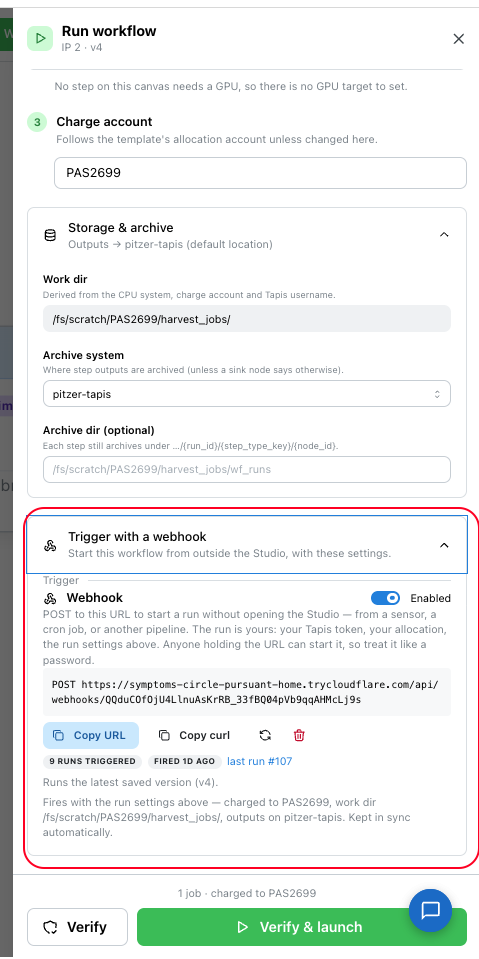
The panel also shows how many runs the webhook has started, when it last fired, a link to its last run, and which version a call would run.
What a call runs, and as whom:
- Your run. It fires as you — your Tapis token, your allocation, your entry in Past Runs — whoever calls the URL.
- The latest saved version. A webhook belongs to the workflow, not to the version you happened to create it on, so saving a new version changes what the URL runs. The panel names the version a call would execute. Drafts (from run without saving) are skipped.
- The run settings in the drawer. The webhook uses the run type, systems, queues, charge account and archive paths shown in the drawer. Change any of them and the webhook is updated automatically. If saving fails, the panel says so in red, shows the settings the webhook still uses, and offers to retry.
- Nothing from the request. Any JSON body you POST is read and discarded: an unauthenticated caller must not be able to redirect a charge account or an archive path.
The URL is the only credential involved, so treat it like a password:
| Control | Effect |
|---|---|
| Enabled switch | Turns the URL off and on. Copies already handed out work again once re-enabled. |
| Regenerate (↻) | Issues a new URL and kills the old one — what to press if a URL leaks. |
| Delete (🗑) | Removes the webhook. Runs it already started are untouched. |
Unknown, deleted and disabled tokens all answer 404 No such webhook, with
nothing to tell them apart, so the endpoint can't be used to hunt for live URLs.
Two fires of the same webhook less than WEBHOOK_MIN_INTERVAL_SECONDS apart
(default 5) are refused with 429, so a retry loop on the caller's end can't
spend an allocation queueing one run per request.
Backend configuration: set WEBHOOK_BASE_URL when the backend is reachable from
outside on a different host than APP_BASE_URL (a tunnel, a reverse proxy) — the
URL handed to the user is built from it.
A trigger is the entity behind all of this, and webhook is its first kind. The
API is shaped for the ones that follow (a schedule, a file arriving, an upstream
run finishing): they are new trigger_type values on
POST /api/workflow-templates/{template_version_id}/triggers, not new endpoints.
See WorkflowTrigger in backend/models.py for the model and its security
notes, and the triggers tag in docs/openapi.yaml for the
full surface.
Run configuration reference (per step)
| Field | Default | Meaning |
|---|---|---|
| Execution system | Your run defaults' system, else expanse-tapis-static | Pin this step to its own system. Clear it to follow the run's CPU or GPU target. |
| Queue | Your default CPU or GPU queue, else tapisShared (GPU steps: tapisGPUShared) | Only selectable once a system is pinned. Picking aws-tapis selects cpu-partition, or a10g-partition for a GPU step. |
| Job working directory | Your run defaults' work dir, else the system's own | Where the job runs on that system. Each job gets its own subfolder. |
| Node count | 1 | Nodes requested. |
| Cores per node | 8 | Cores per node requested. |
| Memory (MB) | 16000 | Memory requested. |
| Max runtime (minutes) | 45 | Wall-clock limit. |
| GPUs | 0 (GPU steps: 1) | Becomes a -G <n> scheduler request. 0 on a GPU step removes it. |
Defaults apply only to a step whose Run Configuration has never been saved. Once you save it, the step keeps those values.
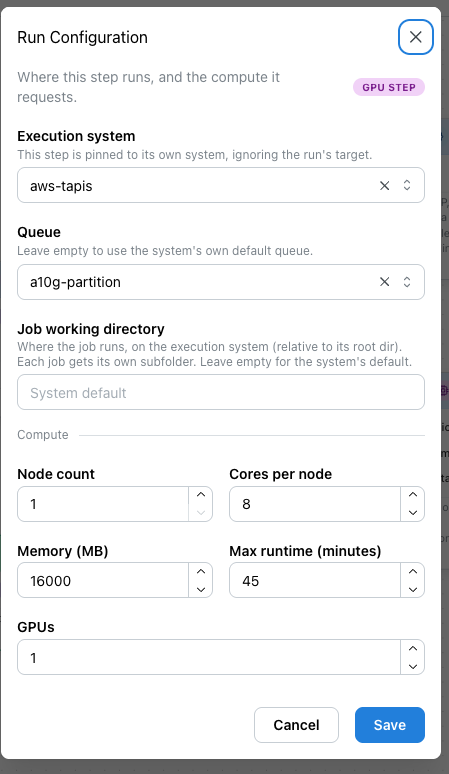
These override whatever the step type's own job template specifies. When a queue is pinned, over-requesting against its published limits is flagged here rather than by a Tapis rejection minutes into the run.
Fix a workflow that won't save
| Message | Fix |
|---|---|
| "X" is missing required input "y" | Connect that input to an upstream output or a data source. Optional inputs are never flagged. |
| "X" output "y" is not saved to a sink | Add a sink node (e.g. 💾 Write Results (JSON)) and wire the output into it — or press Save Anyway if leaving it unconsumed is deliberate. |
| Cannot connect: … is incompatible with … | The two ports' data types don't match. Insert an adapter step, or use a port of the right type. |
Stop, resume, and recover
- Stop a running run from the Past Runs list. This cancels the durable workflow, its child step workflows, and any in-flight Tapis job. Stopping is not the end of the run — a stopped run can be resumed.
- Resume picks the run back up without repeating work it already did. Steps
that completed keep their outputs; only what never finished runs again. It's
on the run's page, and on any
FAILEDorCANCELLEDrun in the Past Runs list for the one-click case. - Start over appears on a
FAILEDorCANCELLEDrun's page and launches the same template version with the same Tapis options as a separate run, leaving this one's record intact — no re-entering settings.
Resuming from a checkpoint
The run page's Resume button opens a picker with two kinds of choice:
- Continue where it stopped — every completed step is kept, and the steps that failed, were cancelled, or never started run again.
- Redo
<step>and everything after it — re-runs that step even if it already succeeded, along with everything downstream of it, because redoing a step invalidates the inputs its dependents consumed. Steps upstream are untouched.
Either way the modal lists exactly which steps will re-run and which are preserved before you commit.
When you name a step, you can also edit that step's configuration right in the modal. The change applies to this resume only — the saved template is not touched — which is the quick path for a run that broke on a bad parameter: fix the value, resume from that step, and the hours of completed work before it are not repeated. To change the workflow itself instead, use Edit Template on the run page; it opens the exact version that ran, and saving creates a new version to launch fresh.
Resuming continues the same run rather than creating a new one, so a run's history stays one thread no matter how many attempts it took.
Add or update a container image link (developers)
When a workflow runs on someone's own machine, each step's container image
(.sif) is downloaded from a link. All of these links are kept in one file:
backend/image_sources.json.
- Create a download link for the image, e.g. a Tapis postit. Give it plenty of allowed uses and a long expiry, because every download uses one.
- Add it to the
imagessection. The key is the step's Tapis app id (or its step name); case and-/_don't matter:"generate-flight-plan": "https://icicleai.tapis.io/v3/files/postits/redeem/…" - Check it:
It lists every step and its link, and flags keys that don't match a step.
cd backend && uv run python scripts/check_image_sources.py - Add the link's ID (the part after
/redeem/) to the allowlist in.gitleaks.toml, next to the other image links. The PR's secret scan treats every Tapis postit link as a secret until it's listed there, so skipping this fails CI.
No restart is needed. From then on, any workflow using that step includes the image in its deployment zip and shows the link in the Deploy dialog and the zip's README.
For training, inference and preprocessing, a link here replaces the one in the
step's own step.json when deploying. Platform runs still use step.json, so
update both when the link changes.
Add a new step type
Steps are registered from backend/steps/<key>/step.json — no frontend code is
needed for a step whose settings are ordinary fields.
- Form-rendered settings: docs/adding-a-step-form.md
- Custom interactive panel: docs/adding-a-step-custom-ui.md