Tutorials
Build a pipeline (editor)
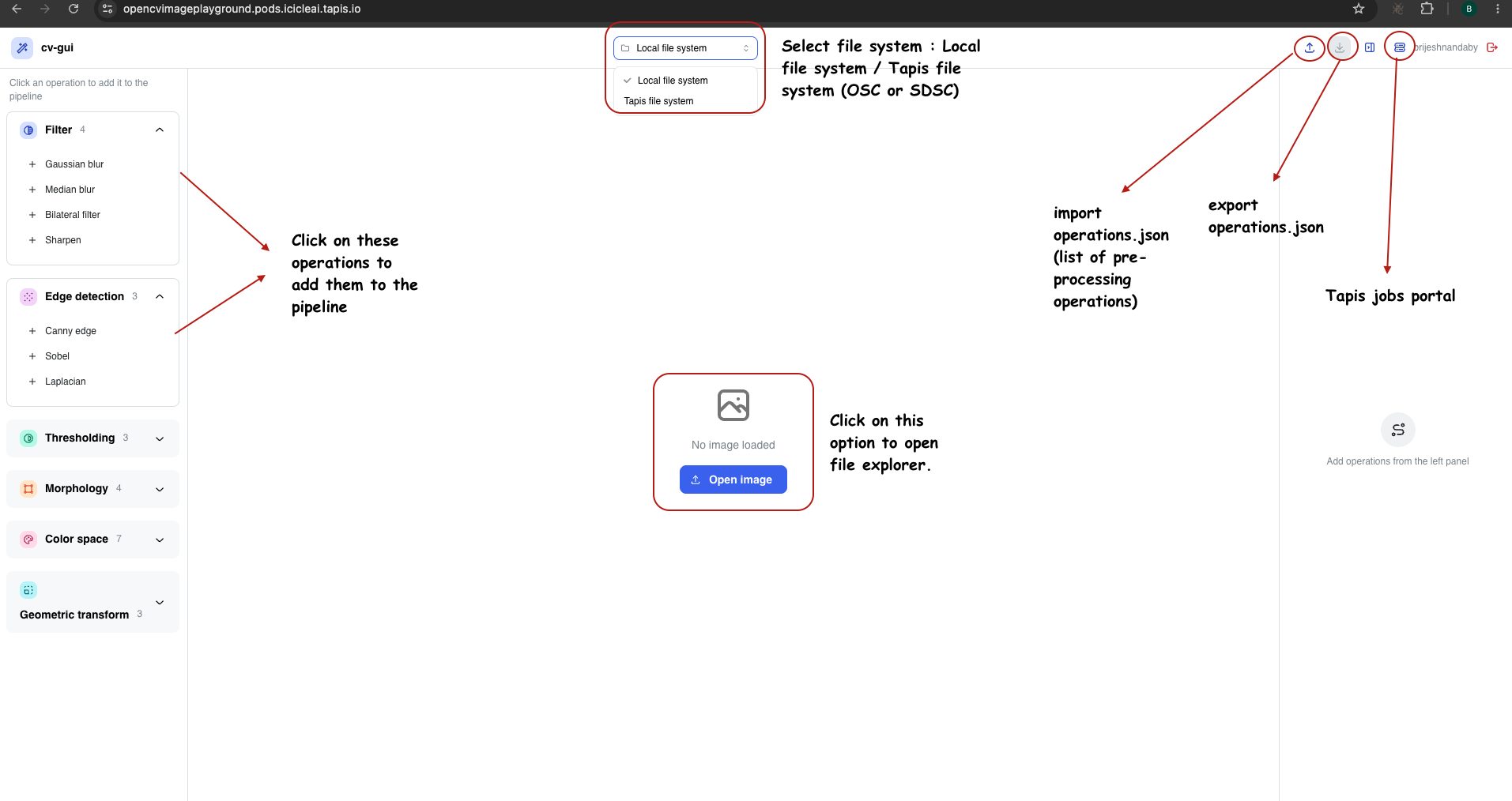
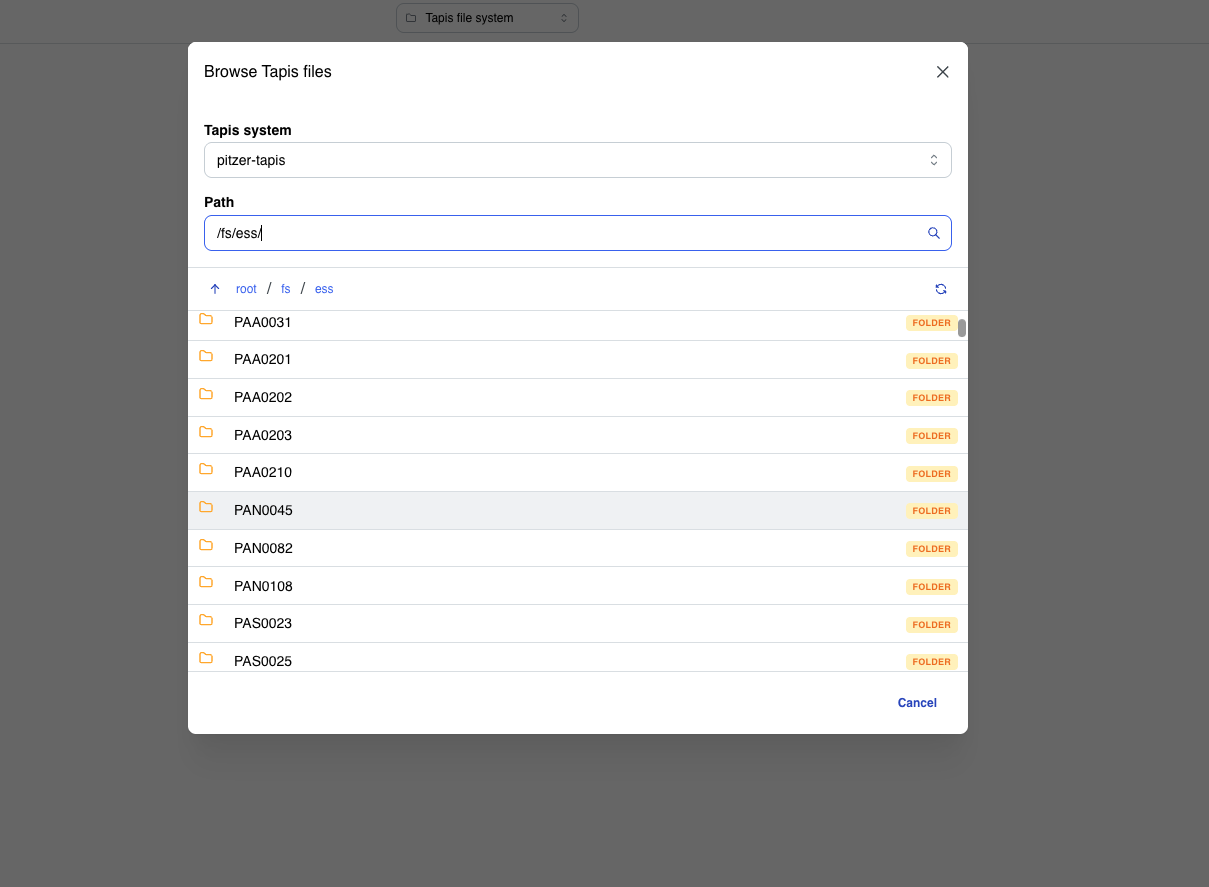
- Open an image — click Open image (local file, or the Tapis file browser
once signed in).
- Add operations — from the left panel, click ops to append them. They're grouped and colour-coded by category (filter, edge, threshold, morphology, colour, geometry, denoise).
- Tune & reorder — expand a step to edit its parameters; drag the handle to
reorder; toggle a step off to skip it. The right pane shows Original vs
Processed live (zoom/pan supported).
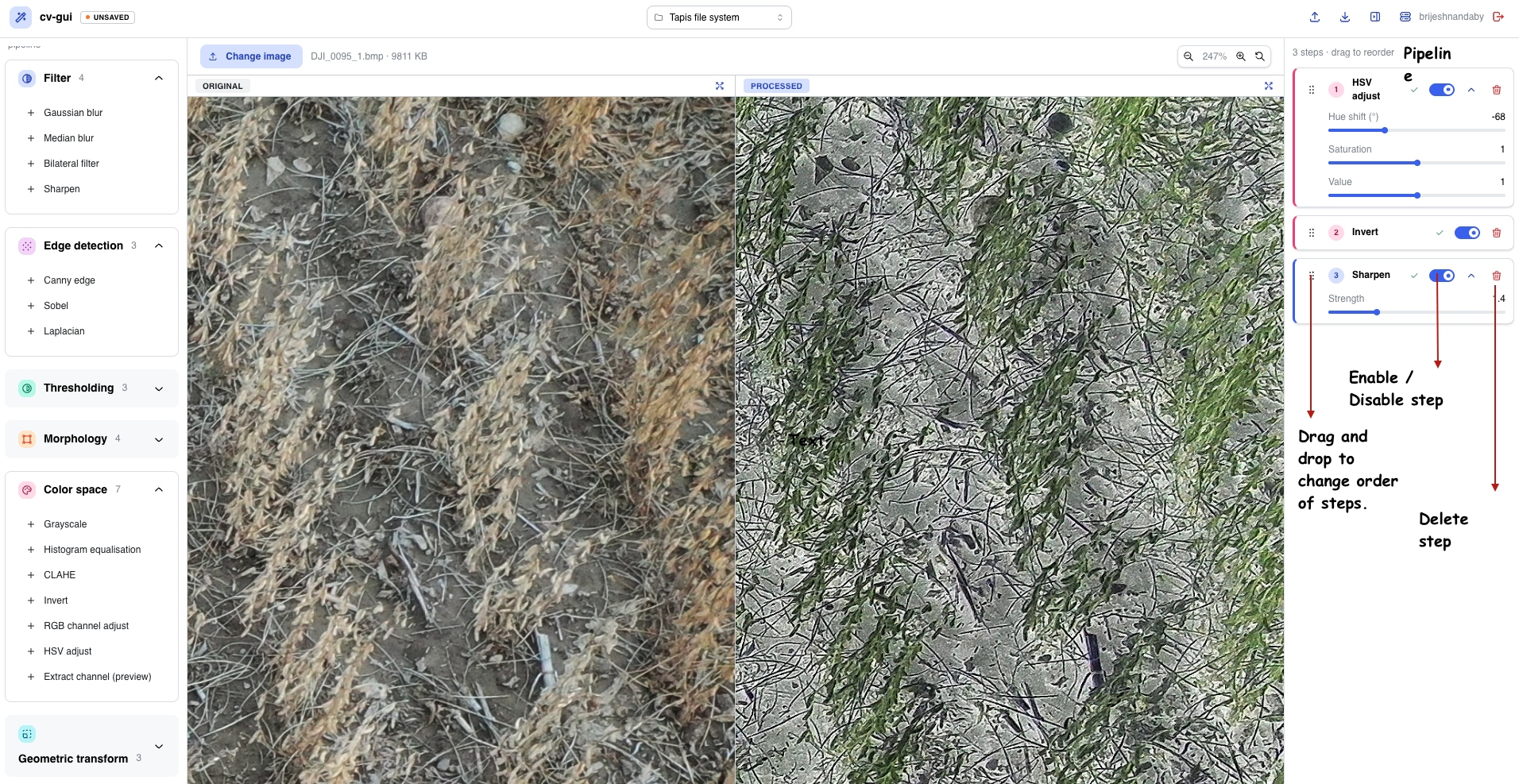
- Save / load — the header ⭱/⭳ icons import and export
operations.json.
The pipeline is remembered automatically and carried over to the /jobs page.
Run as a Tapis batch job
Requires Tapis to be configured (see SETUP.md) and the
opencv-preprocess app registered against a built preprocess.sif.
Sign in
If you already have a Tapis session (an X-Tapis-Token cookie from another Tapis
app), you're signed in automatically. Otherwise click the Tapis login icon in the
editor header. Then open the jobs page (server icon in the header, or /jobs).
Submit a job
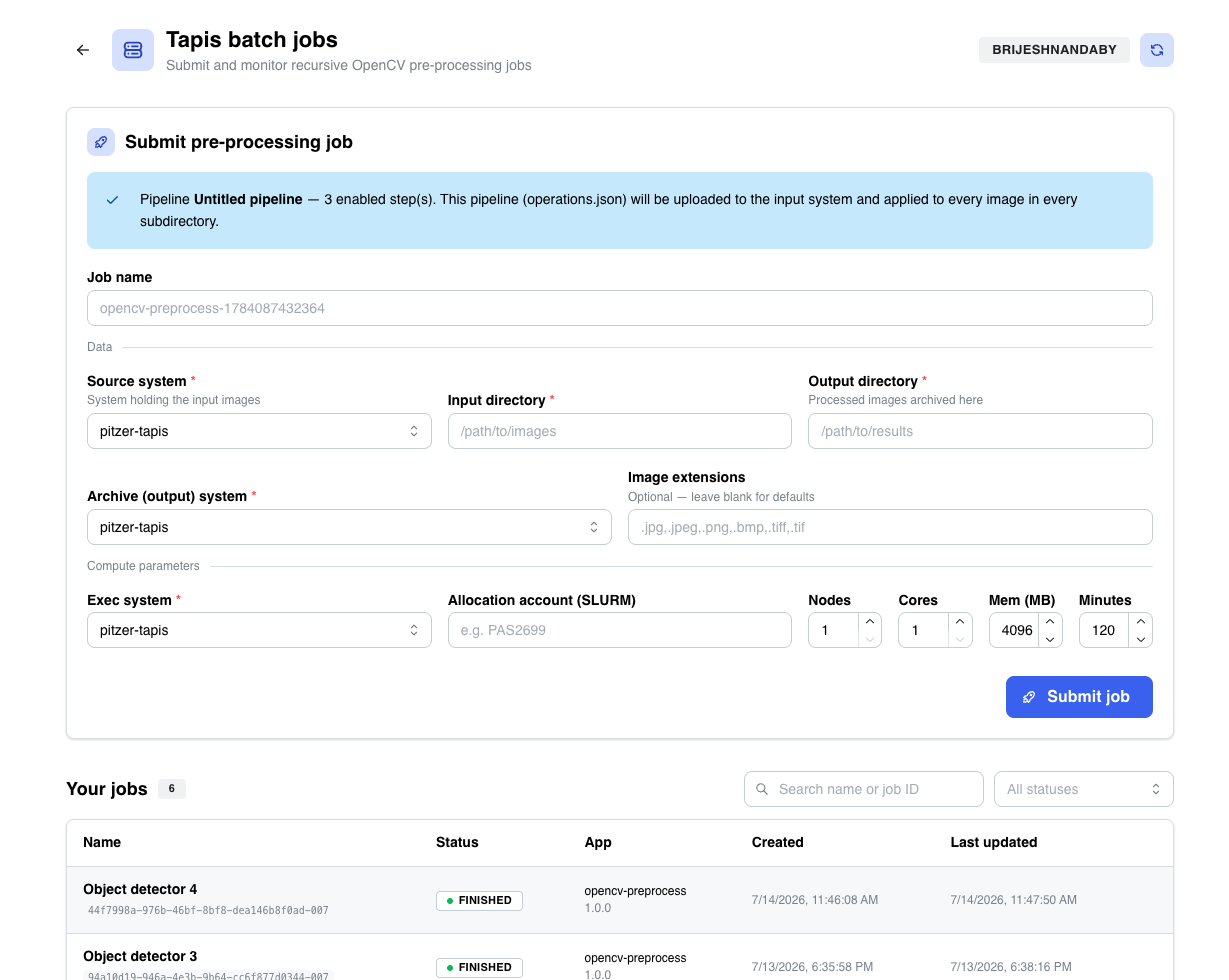
Fill the form — the pipeline you built in the editor is uploaded automatically as
operations.json — then click Submit job. Behind the scenes the app uploads
the pipeline, then POSTs to /v3/jobs/submit server-side (your token never
touches the browser).
When a job reaches FINISHED, the processed images (plus a
preprocess_summary.json report) are in your output directory on the
archive system.