Tutorials
Explore HARP without Tapis
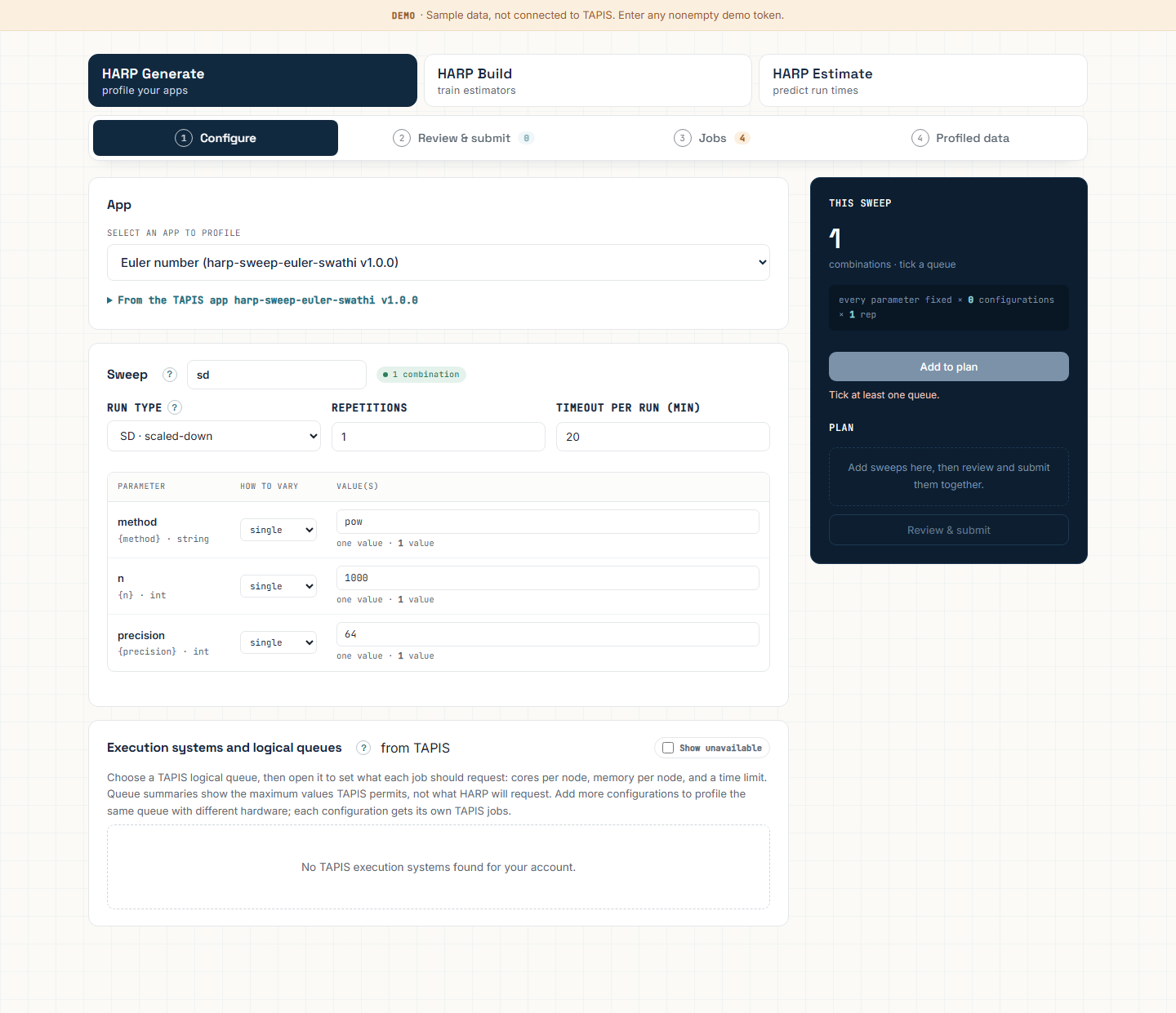
Use this tutorial to understand the interface before using a cluster. The offline demo uses sample applications, systems, jobs, profiling data, and trained models; it never contacts Tapis.
Prerequisites
- A current desktop browser.
- A local copy of this repository.
Steps
- Open
DEMO/ui/profiling.htmlin a browser. - Enter any nonempty value in the demo access-token field. It stays in the demo and is not sent anywhere.
- Use the top-level navigation to inspect HARP Generate, HARP Build, and HARP Estimate.
- Under Generate, configure a sample sweep, add it to the plan, review it, and create demo jobs.
- Open Jobs and Profiled data to inspect job states, failures, hardware, parameters, and walltimes.
- Open Build and Estimate to follow the model-training and prediction stages.
Expected result
You can navigate the complete HARP workflow and interact with sample data without a Tapis account. Closing or refreshing the demo cannot create, cancel, or change a real job.
Open the hosted service
Prerequisites
- An account on the ICICLE Tapis tenant.
- A current Tapis access token when opening HARP directly.
- Credentials and an allocation on any HPC system where you intend to submit jobs.
Steps
- Open https://harp.pods.icicleai.tapis.io.
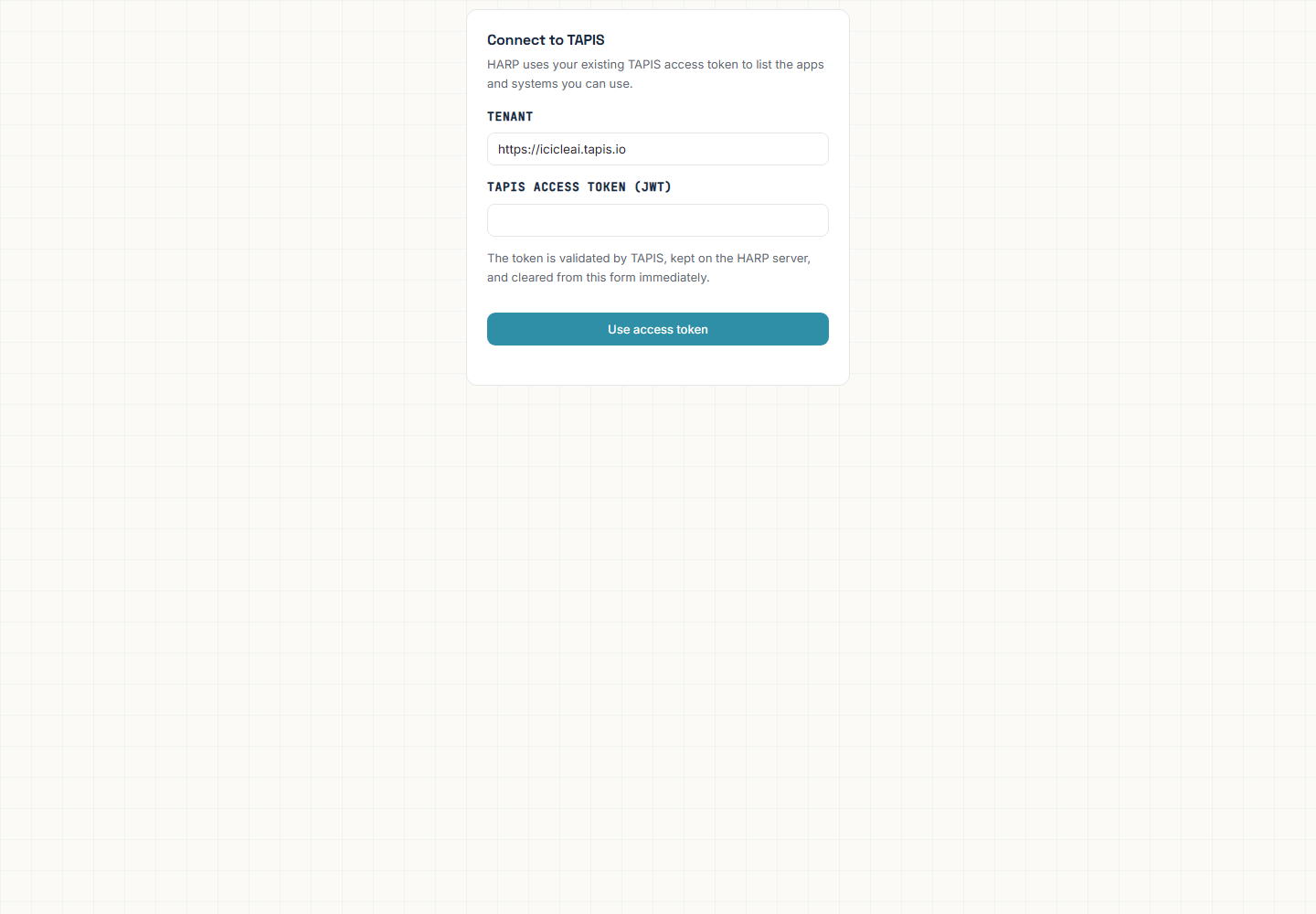
- Paste a current ICICLE Tapis access token when prompted. Do not put the token in a URL, issue, screenshot, or repository file.
- Confirm that the page shows the applications and systems available to your Tapis identity.
- If HARP is enabled in your TapisUI deployment, you may instead sign in to TapisUI and open the HARP service. The embedded service receives the portal session automatically and should not show a second login screen.
Expected result
The Generate page loads with the applications and execution systems visible to your Tapis identity. Seeing a system or queue means it is configured in Tapis; it does not guarantee that the remote scheduler partition is currently active. A queue marked UNCHECKED has no configured live scheduler validator; it is not waiting on a check.
Run HARP UI on your computer
This starts the real FastAPI service locally. Unlike the offline demo, it uses your Tapis token and can submit real jobs.
Prerequisites
- Windows, macOS, or Linux.
- Python 3.11 or 3.12.
gitand this repository.- A Tapis access token for live testing.
Steps
git clone https://github.com/ICICLE-ai/HARP-UI.git
cd HARP-UI
./harp_server/scripts/run_local.sh
Open http://localhost:8000. The first run creates harp_server/.venv and installs FastAPI, Uvicorn and tapipy, plus pandas, scikit-learn and TensorFlow for local model builds (set HARP_NO_BUILD=1 to skip those). The server listens on 127.0.0.1 only. State is kept in ~/.harp_server.
On Windows PowerShell, the equivalent setup is:
py -3.12 -m venv harp_server/.venv
& .\harp_server\.venv\Scripts\Activate.ps1
python -m pip install -r harp_server/requirements.txt -r harp_server/requirements-build.txt
Push-Location harp_server
python -m uvicorn harp_server.app:app --host 127.0.0.1 --port 8000
Keep the computer awake while sweeps run. On macOS, use caffeinate -i ./harp_server/scripts/run_local.sh. If the computer sleeps or the server stops, jobs already accepted by Tapis keep running; start HARP again and log in to resume tracking them.
Expected result
http://localhost:8000/healthz returns {"status":"ok"}, and the browser shows the same HARP interface as the hosted service. Stopping the local server does not cancel jobs already accepted by Tapis.
Generate, build, and estimate runtime
This tutorial follows the complete three-stage workflow with one profiling application. The exact systems and partitions depend on the current Tapis inventory and live scheduler checks; use only entries marked AVAILABLE. The example uses the parameter values 1, 2, one repetition, and the OSC scheduler option -A PAS2271. Replace those values with ones appropriate for your application and allocation.
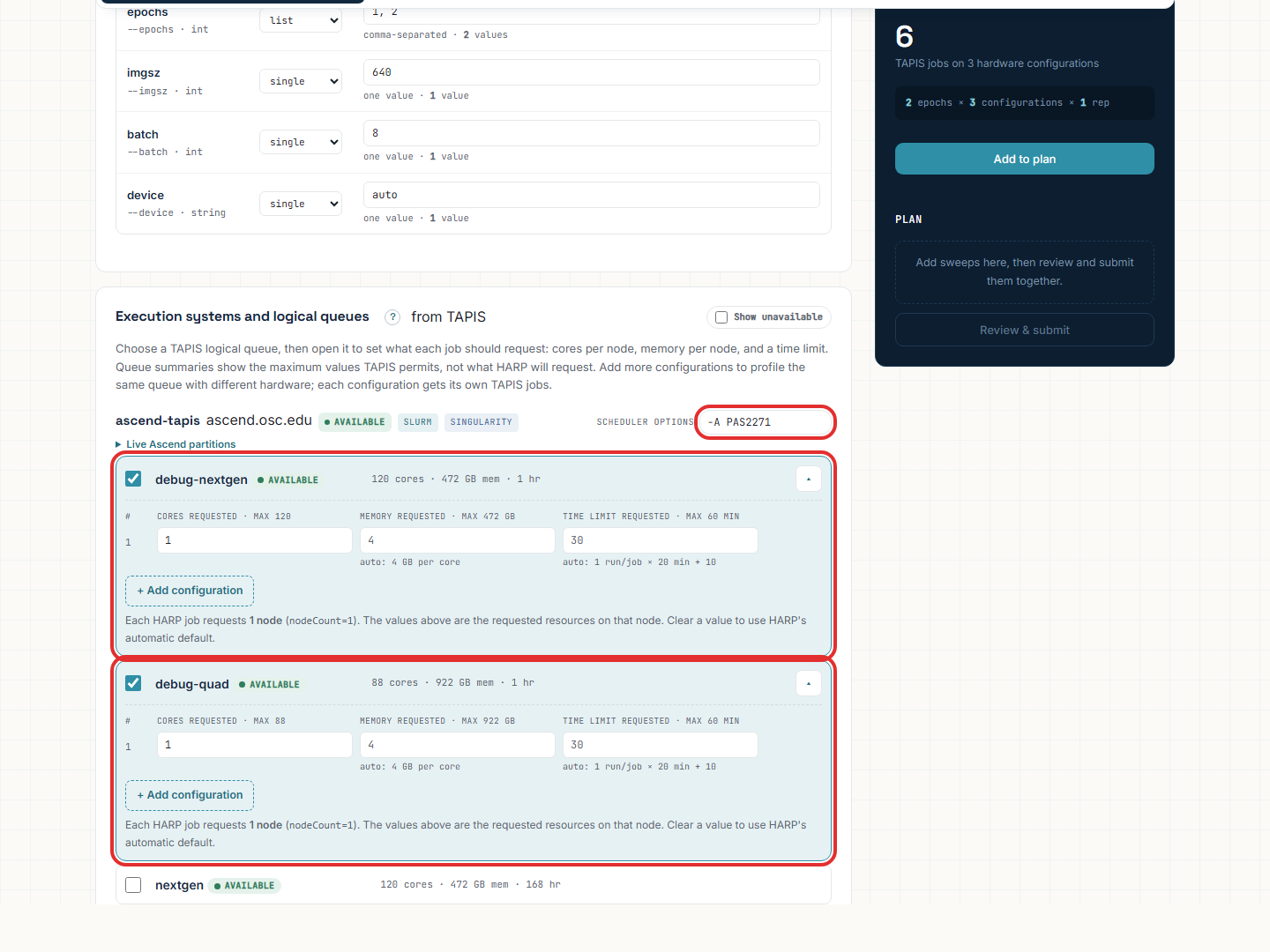
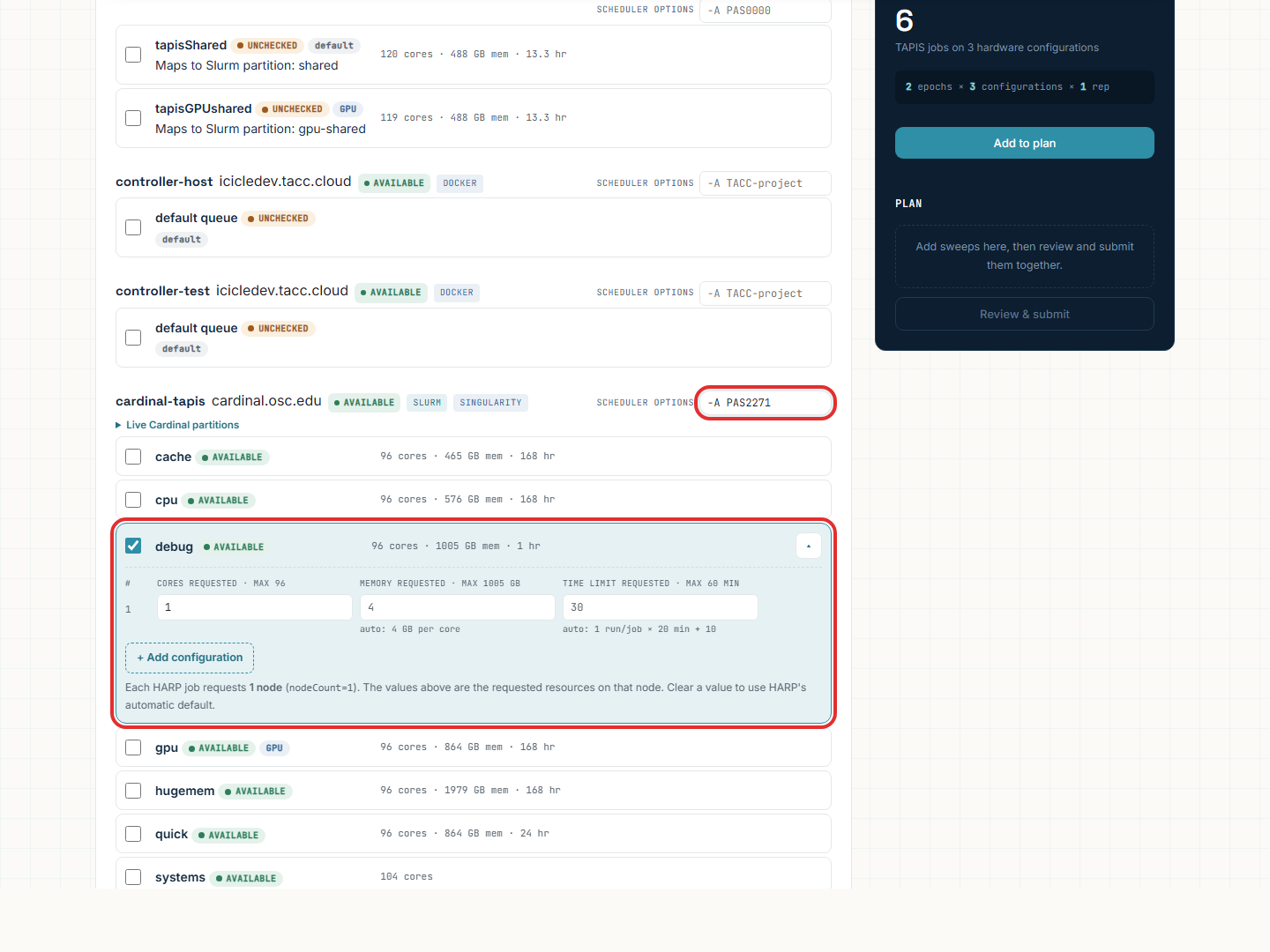
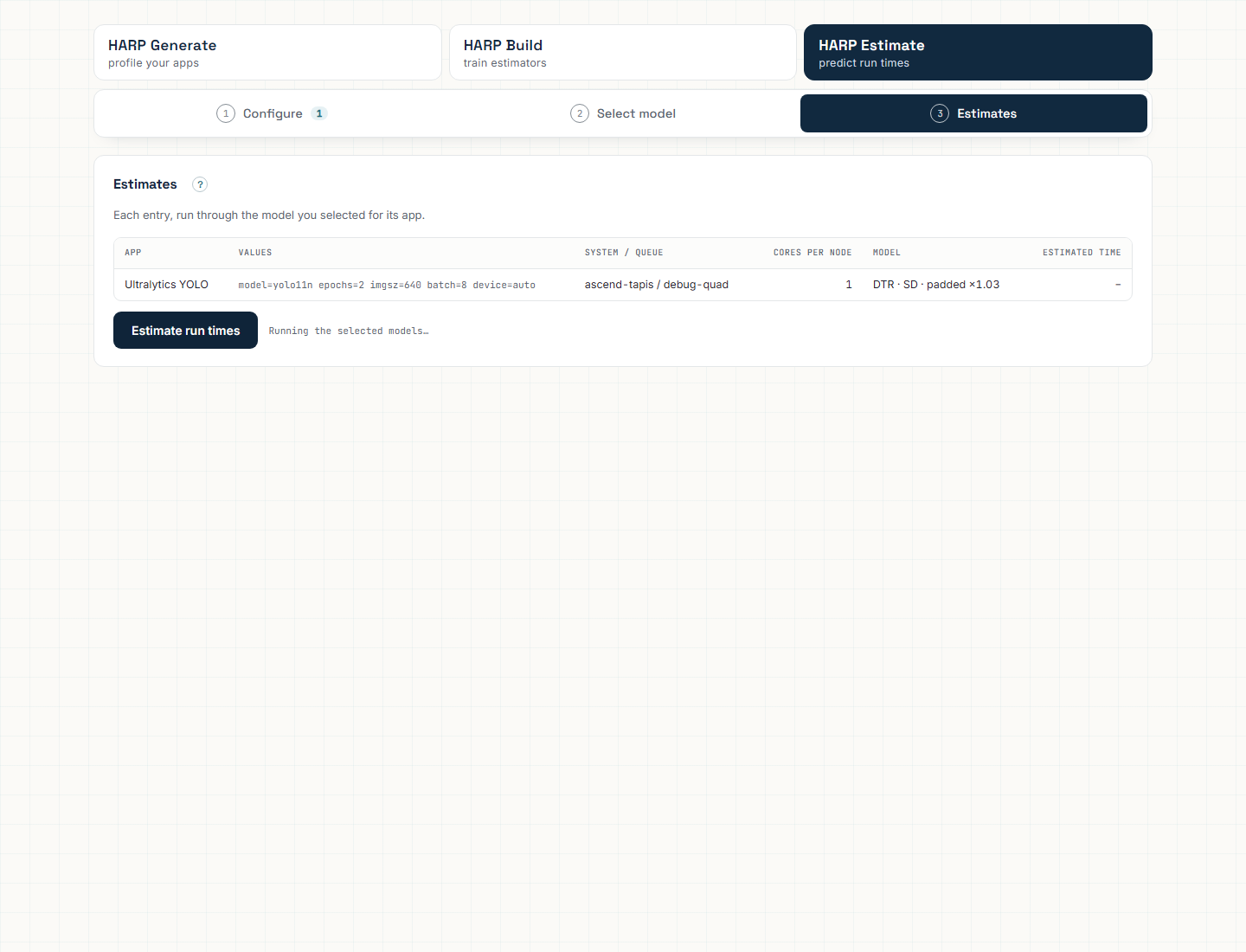
Red rectangles in the tutorial images identify the control or result used in that step. Clean, unannotated copies are kept beside them in docs/images/.
Prerequisites
- A current Tapis session and a HARP profiling app visible to your account.
- Working Tapis credentials for Ascend and Cardinal.
- An allocation valid on both selected systems.
- At least two available Ascend partitions, one available Cardinal partition, and a fourth available partition for the held-out test sweep.
- A writable Tapis system and absolute results folder.
Stage 1: Generate profiling data
-
Open HARP Generate → Configure and select the profiling app. System-access badges initially show CHECKING while HARP performs a read-only Tapis Files check. OSC queue badges use the live Slurm probe to become AVAILABLE or UNAVAILABLE; queues without a configured live scheduler validator show UNCHECKED. Select only AVAILABLE queues for this tutorial, and leave Show unavailable off while choosing targets.
-
Configure a scaled-down (
SD) sweep. Give the varying parameter the list1, 2, keep one repetition, and select two available Ascend partitions plus one available Cardinal partition. Enter-A PAS2271in the scheduler-options field for both systems. Each HARP job requests one node; cores, memory, and time are per-node requests, not the displayed queue maxima.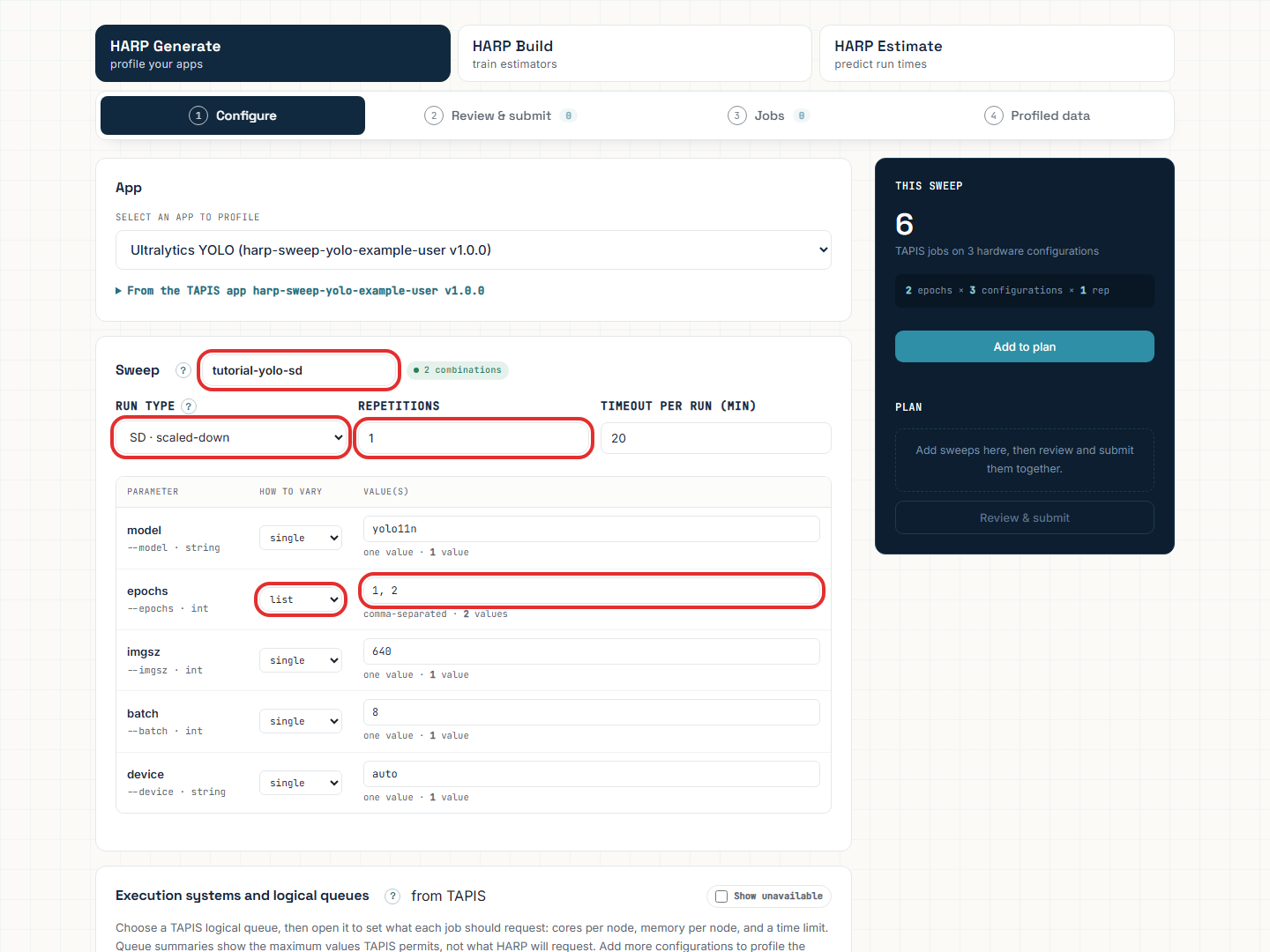
-
Select Add to plan. If HARP warns that a selected system is missing an allocation, go back and fill it in instead of continuing.
-
Change the run type and name to create a full-scale (
FS) sweep with the same parameter values and three profiling targets, then add it to the plan. -
Create a
test_datasweep with the same values but select only one other available Ascend or Cardinal partition. Add it to the plan. Held-out test rows score the trained models and are never used for fitting.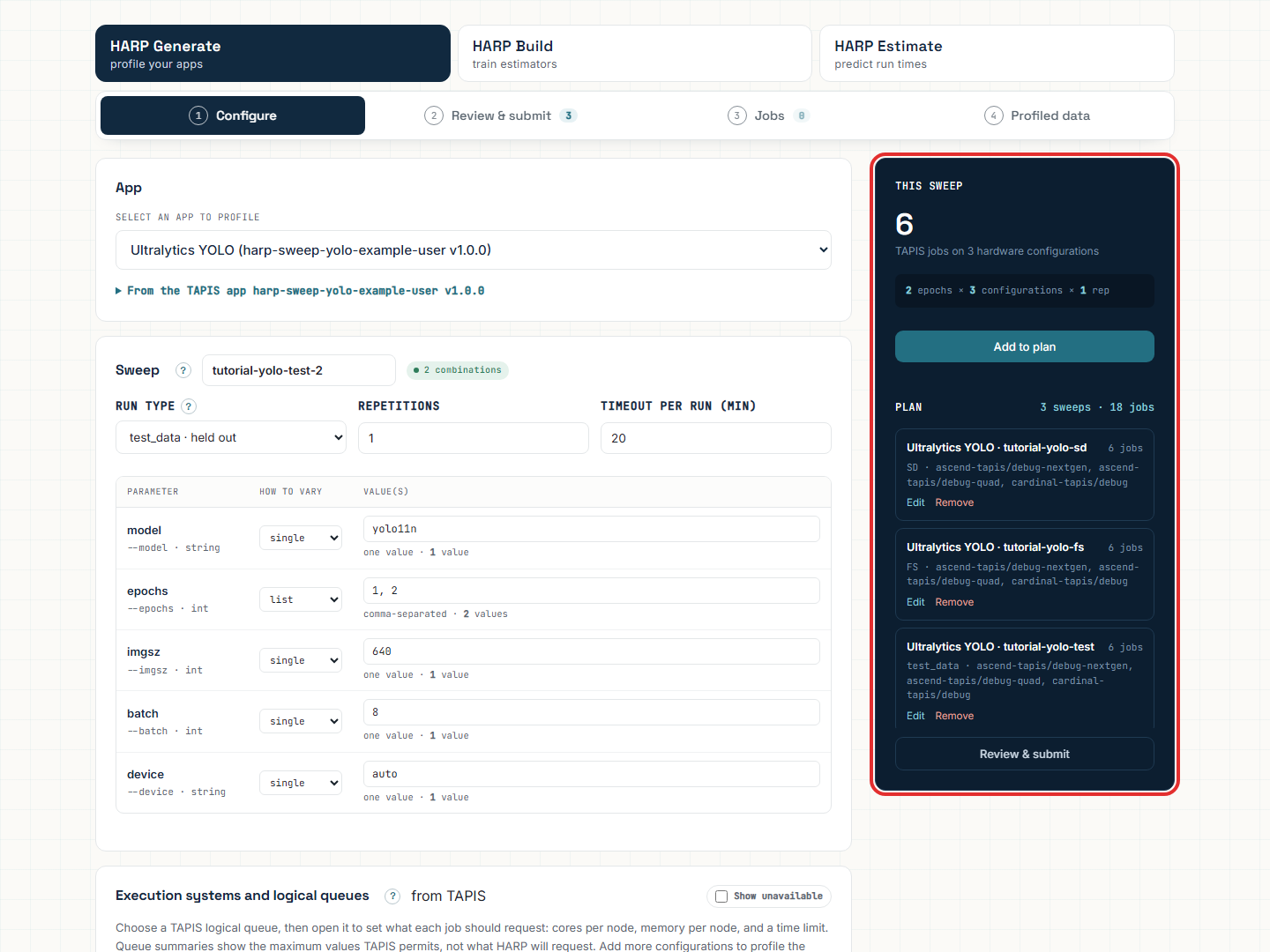
-
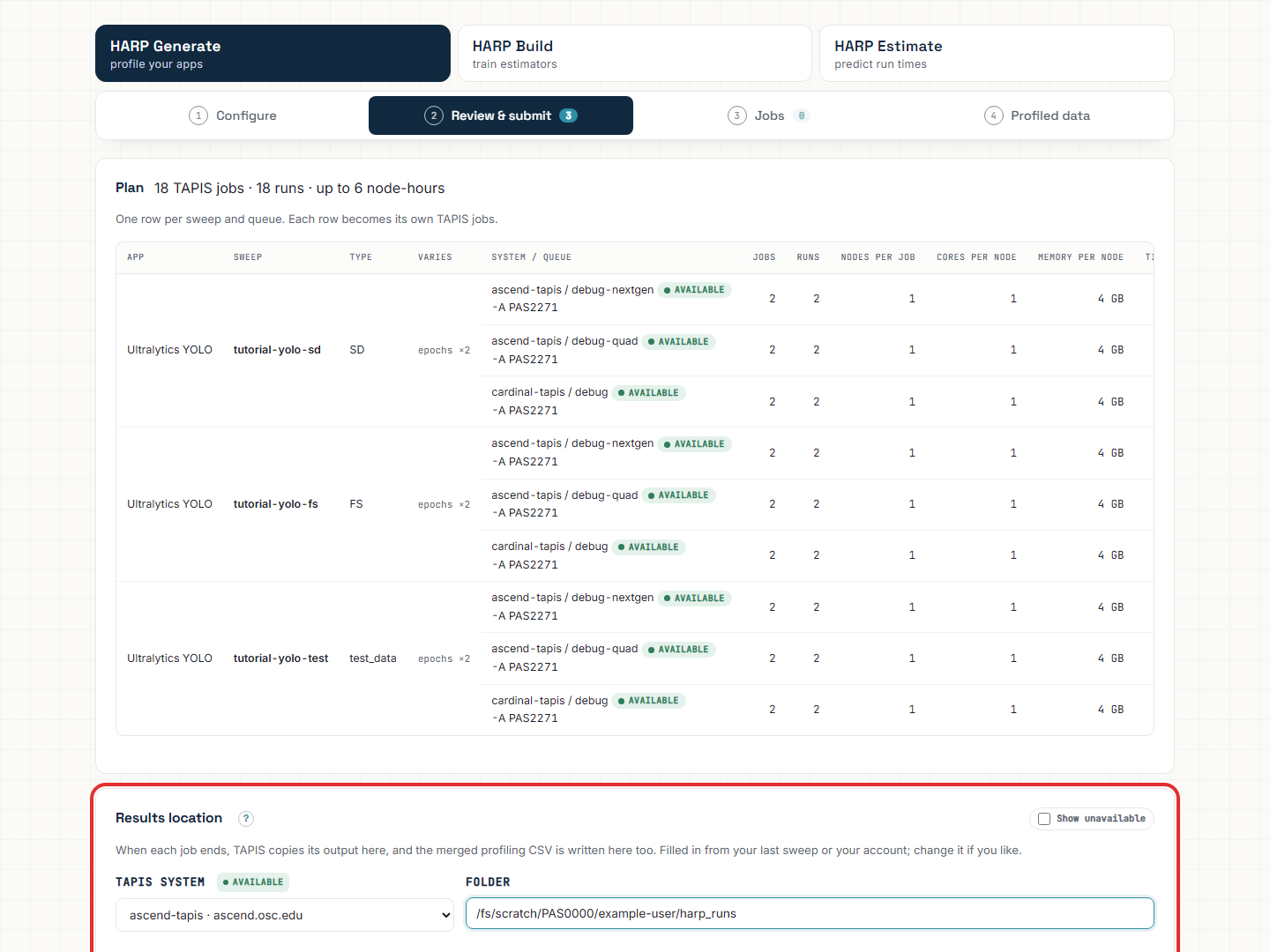
Open Review & submit. Confirm that the plan contains all three sweeps, every target requests one node, the requested cores/memory/time are within the Tapis logical-queue limits, and the scheduler options are present. Choose the writable results location, tick the confirmation box, and submit the whole plan.
-
Open step 3, Jobs, immediately after submission. HARP and Tapis move jobs through pre-submission, scheduler, execution, and archiving states. The page polls while work is active; a successful status response replaces transient connection errors from an earlier poll.
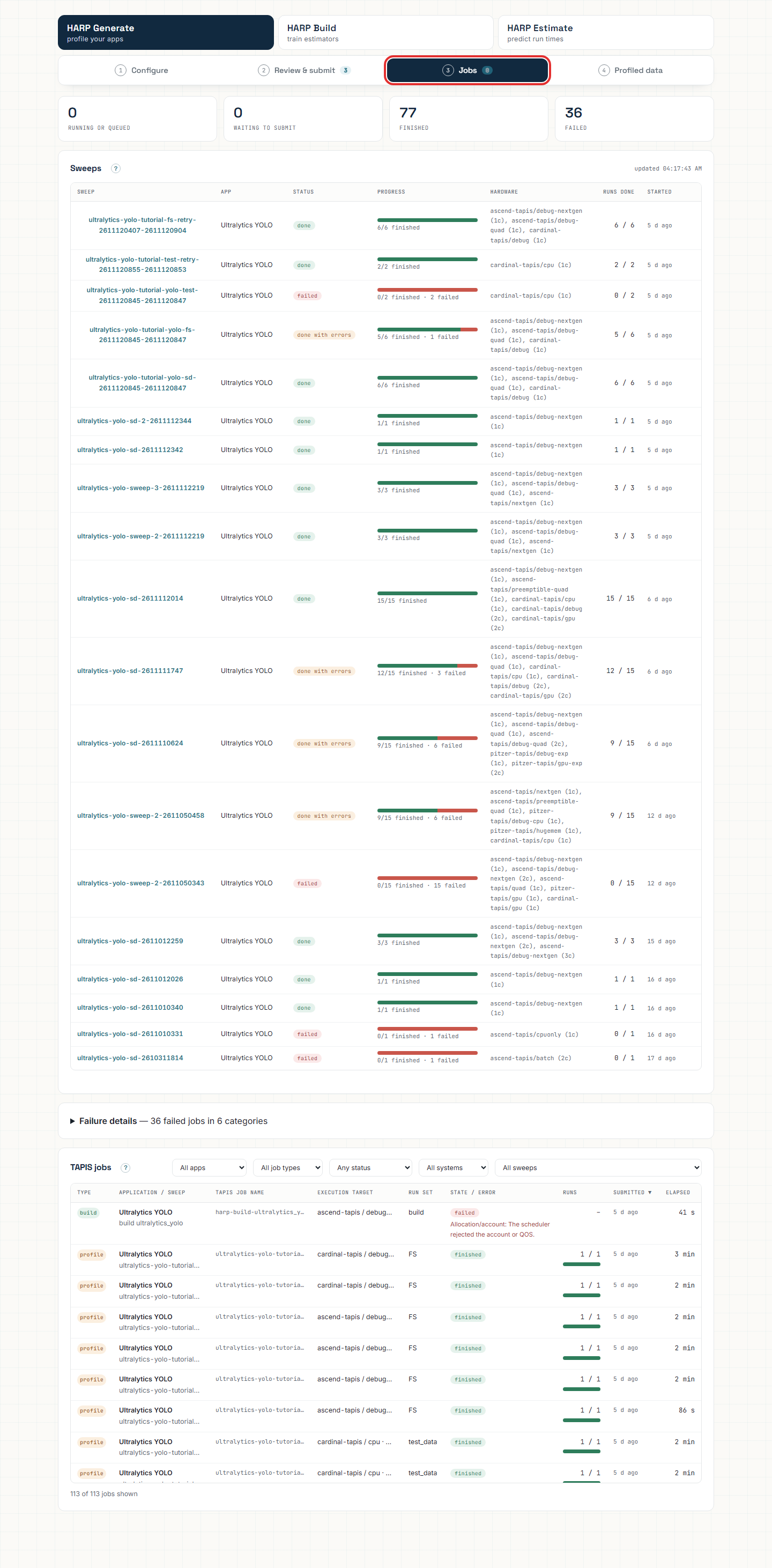
-
Wait until all three sweeps have finished. A sweep can be DONE WITH ERRORS if only some jobs succeeded; open its jobs and failure details before deciding whether its successful rows are suitable for training.
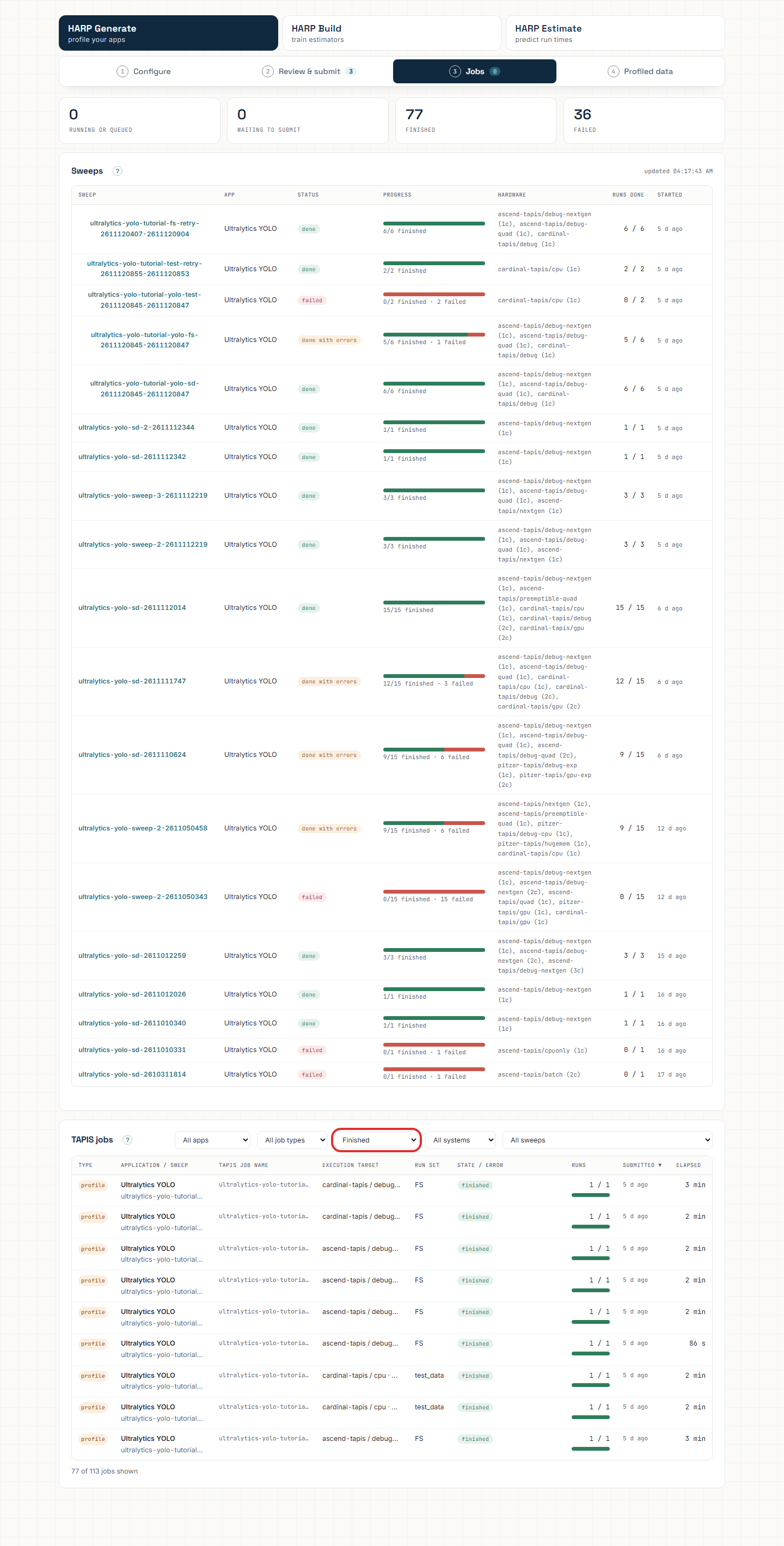
-
Open step 4, Profiled data, and verify that SD, FS, and test_data rows are present. This page reports only successfully collected rows, so its counts can be lower than the number of submitted jobs when a sweep has errors.
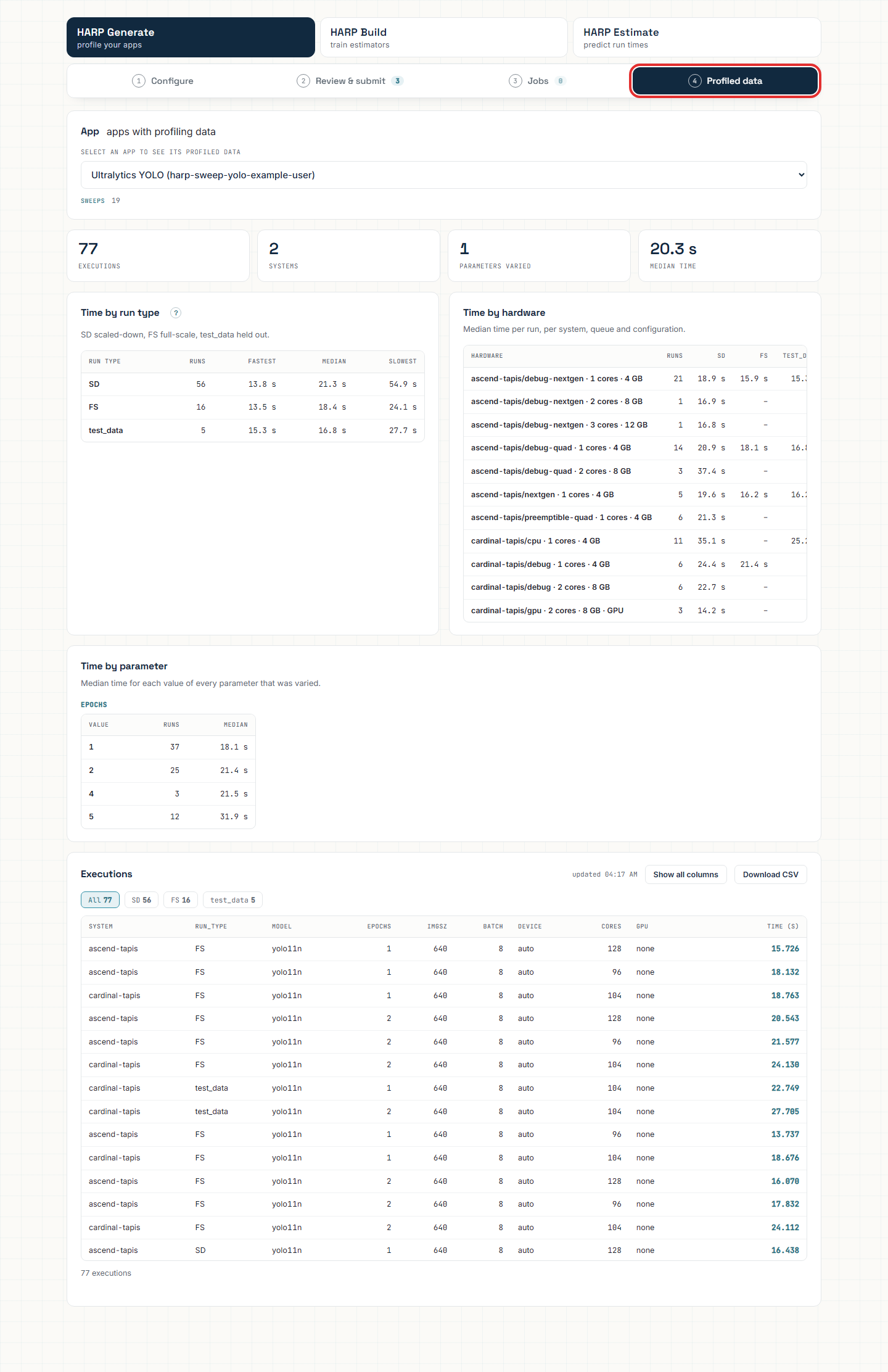
Stage 2: Build runtime models
-
Open HARP Build → Training data and select only the three sweeps created above. The data check must show at least 2 SD rows, 4 FS rows, and 1 test_data row. Queue count alone does not guarantee this—only successfully profiled rows count.
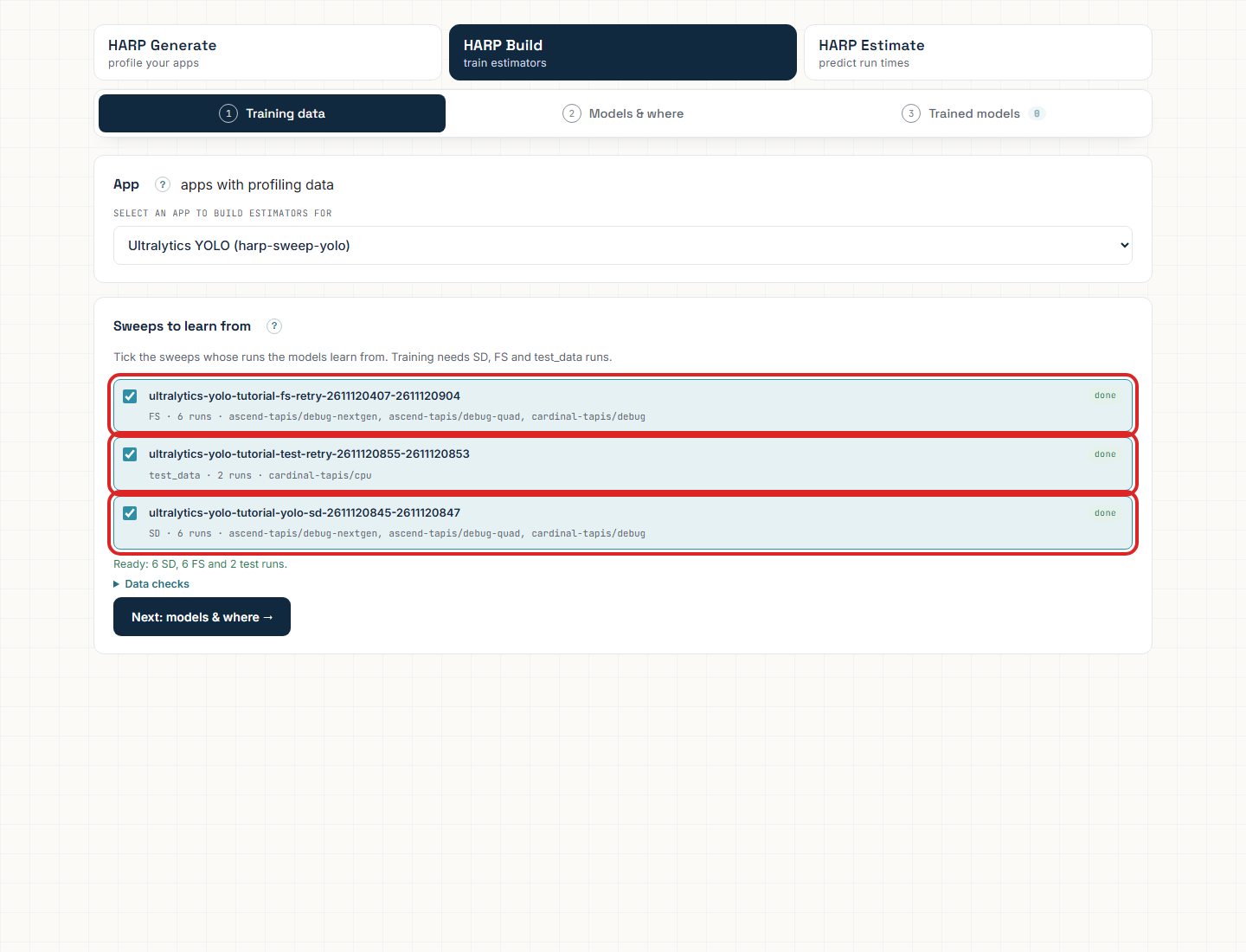
-
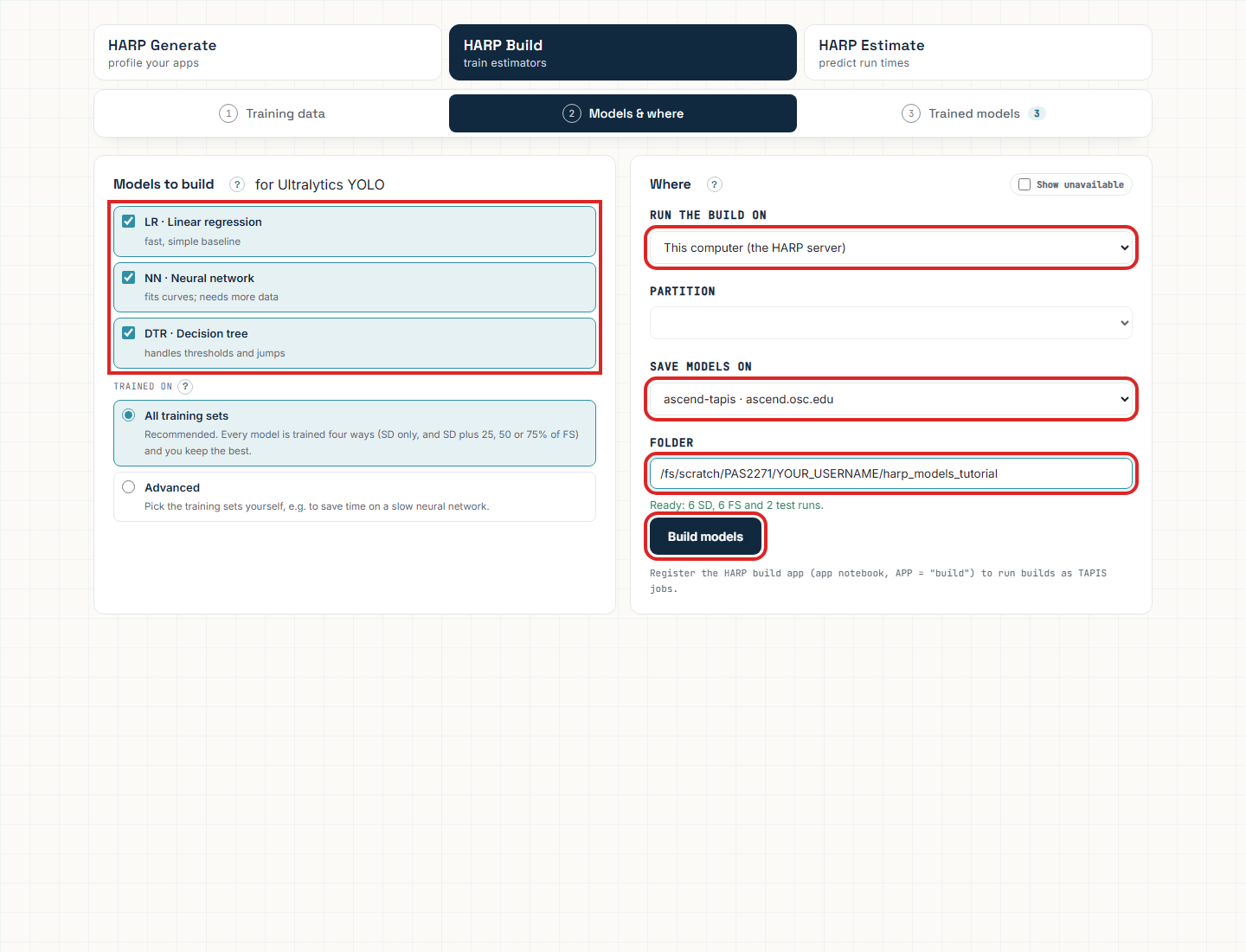
Open Models & where. Choose the desired LR, NN, and/or DTR models and training sets. Choose a Tapis system and partition or This computer for the build, then choose the Tapis system and absolute folder where model artifacts will be saved.
-
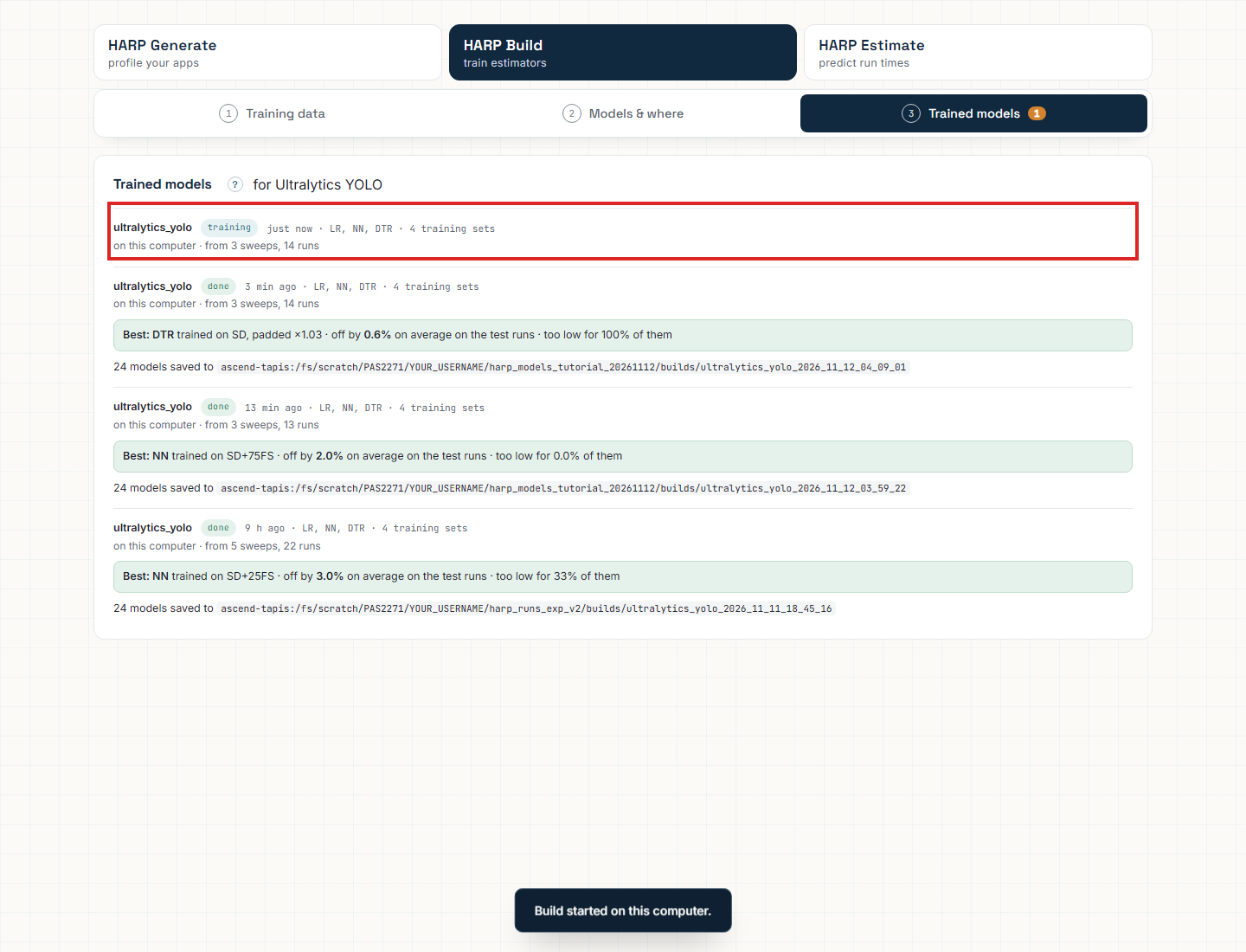
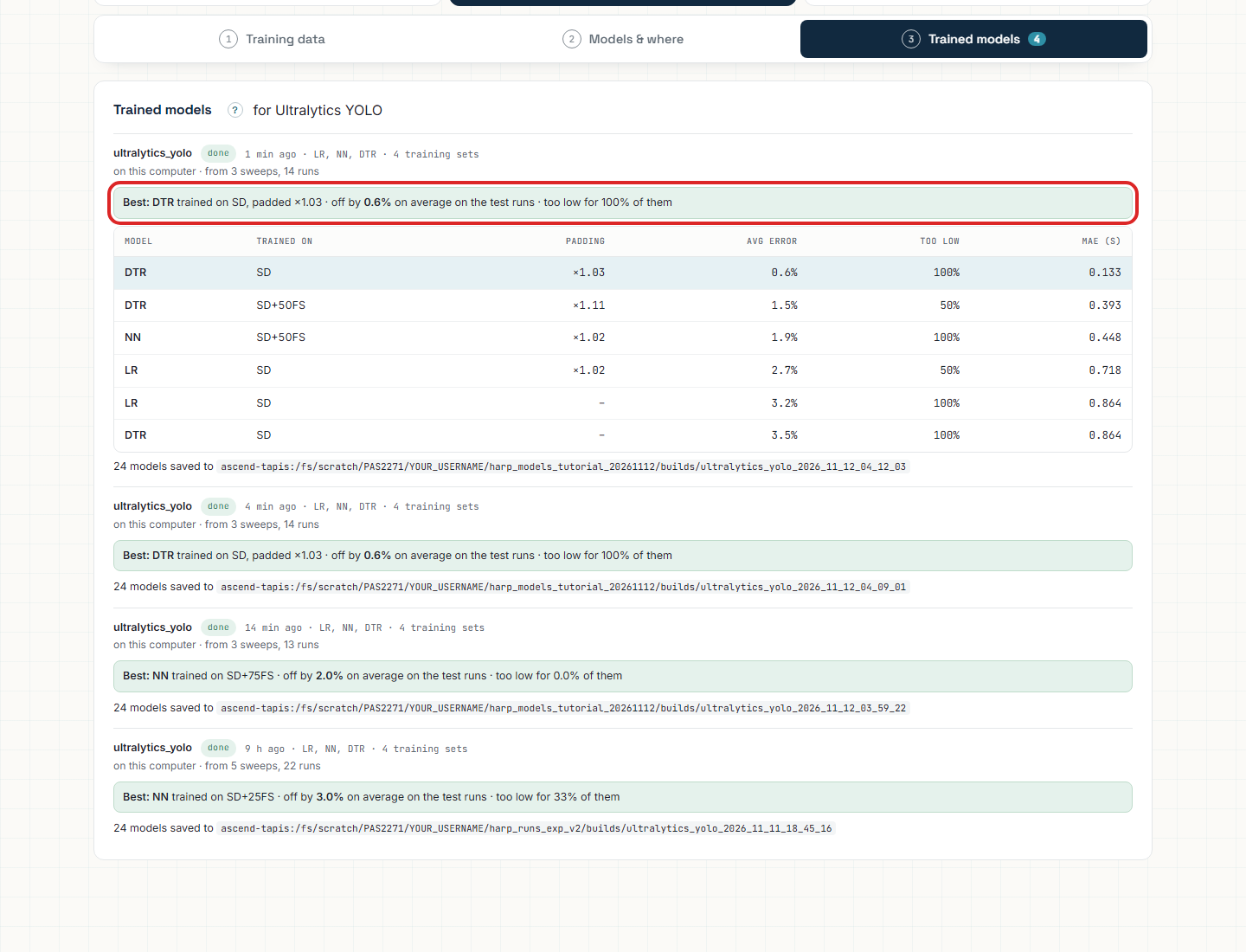
Select Build models. A remote build appears in Generate → Jobs; a local build runs in the HARP server process. When it finishes, open Trained models and compare average error and the percentage of predictions that were too low. The best-scoring model is listed first.
Stage 3: Estimate a new run
-
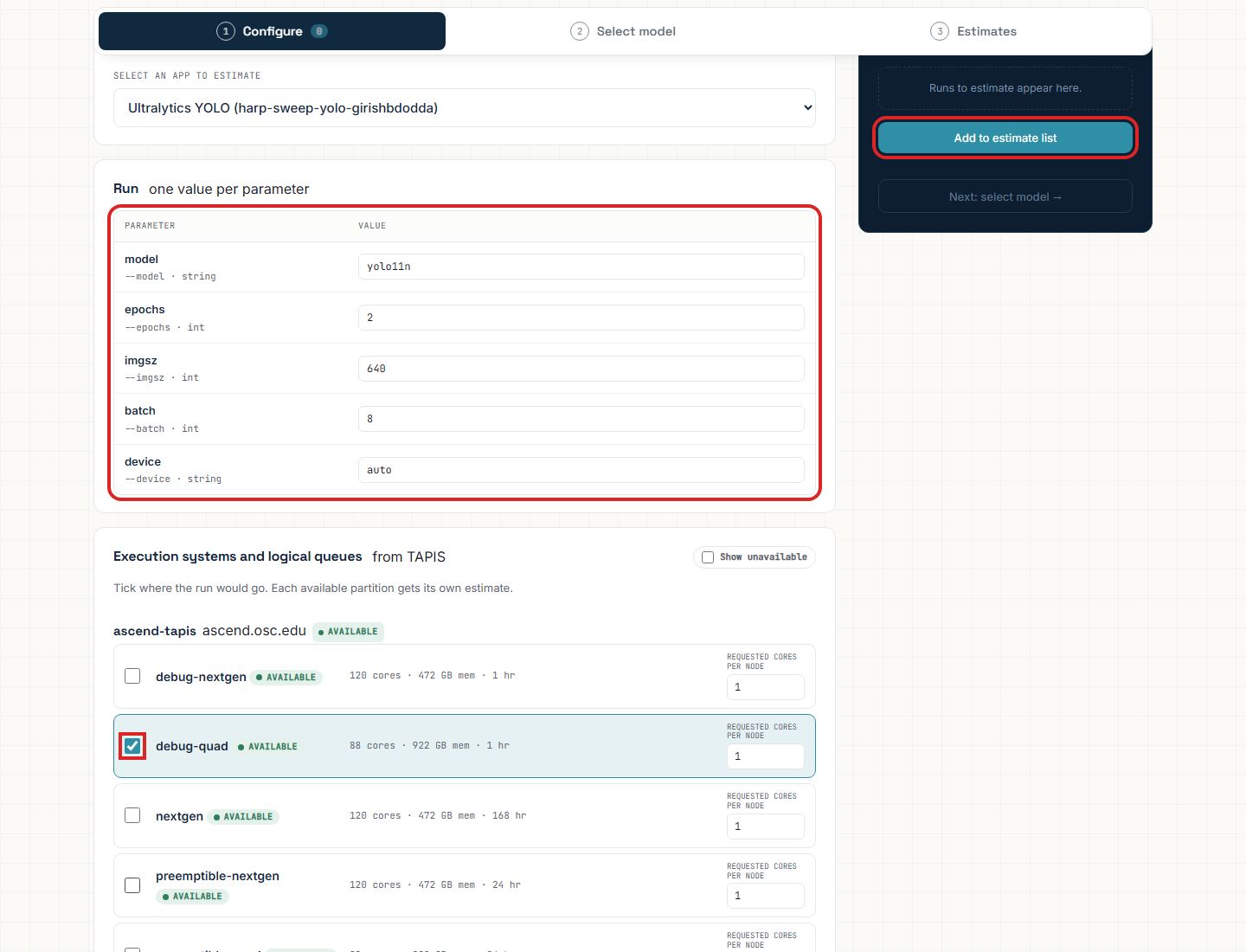
Open HARP Estimate → Configure, choose the same app, and enter one value per parameter rather than a comma-separated sweep. Select one available partition and the cores per node that the prospective job would request, then add it to the estimate list.
-
Open Select model. HARP orders completed models by score and preselects the best available model; confirm the choice.
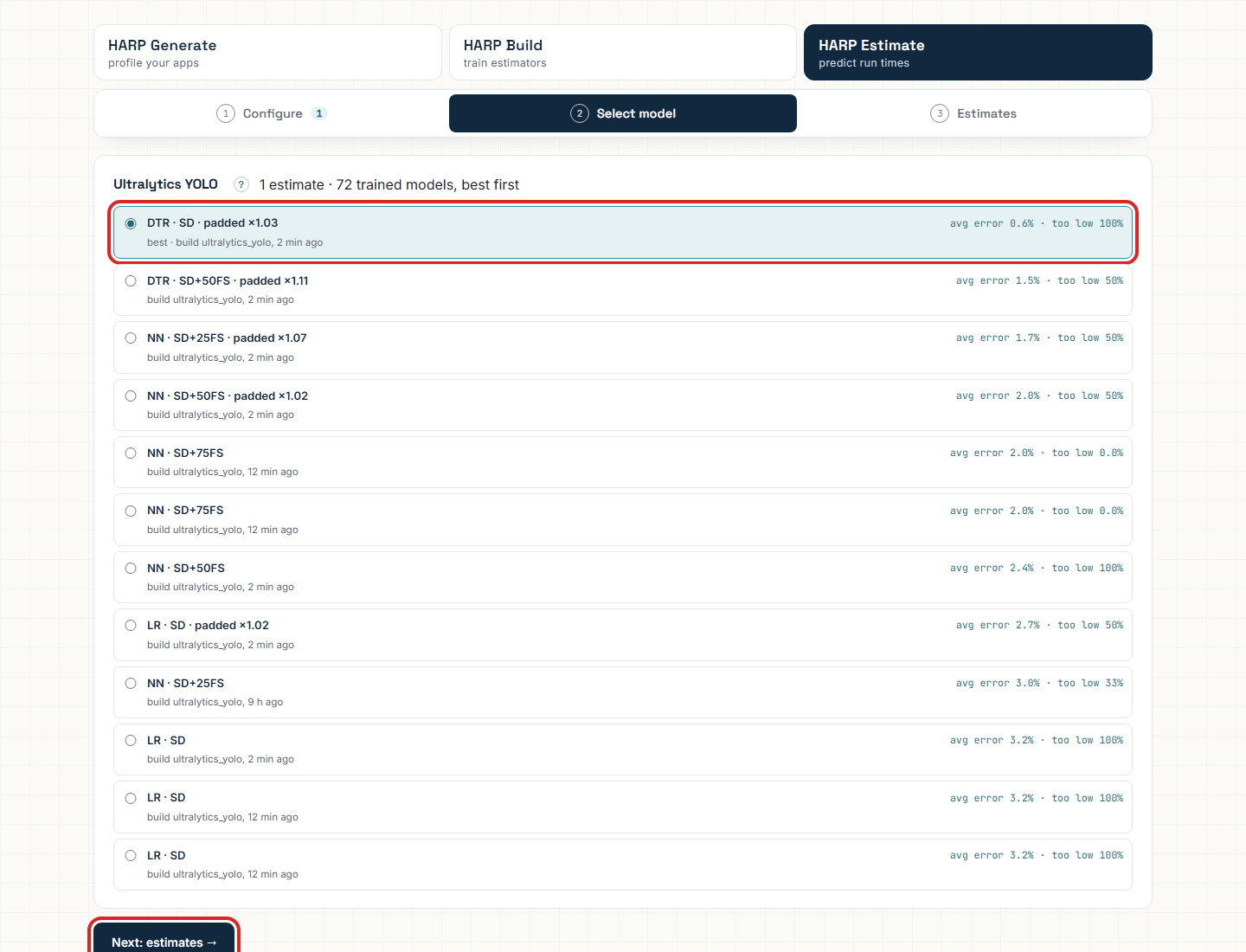
-
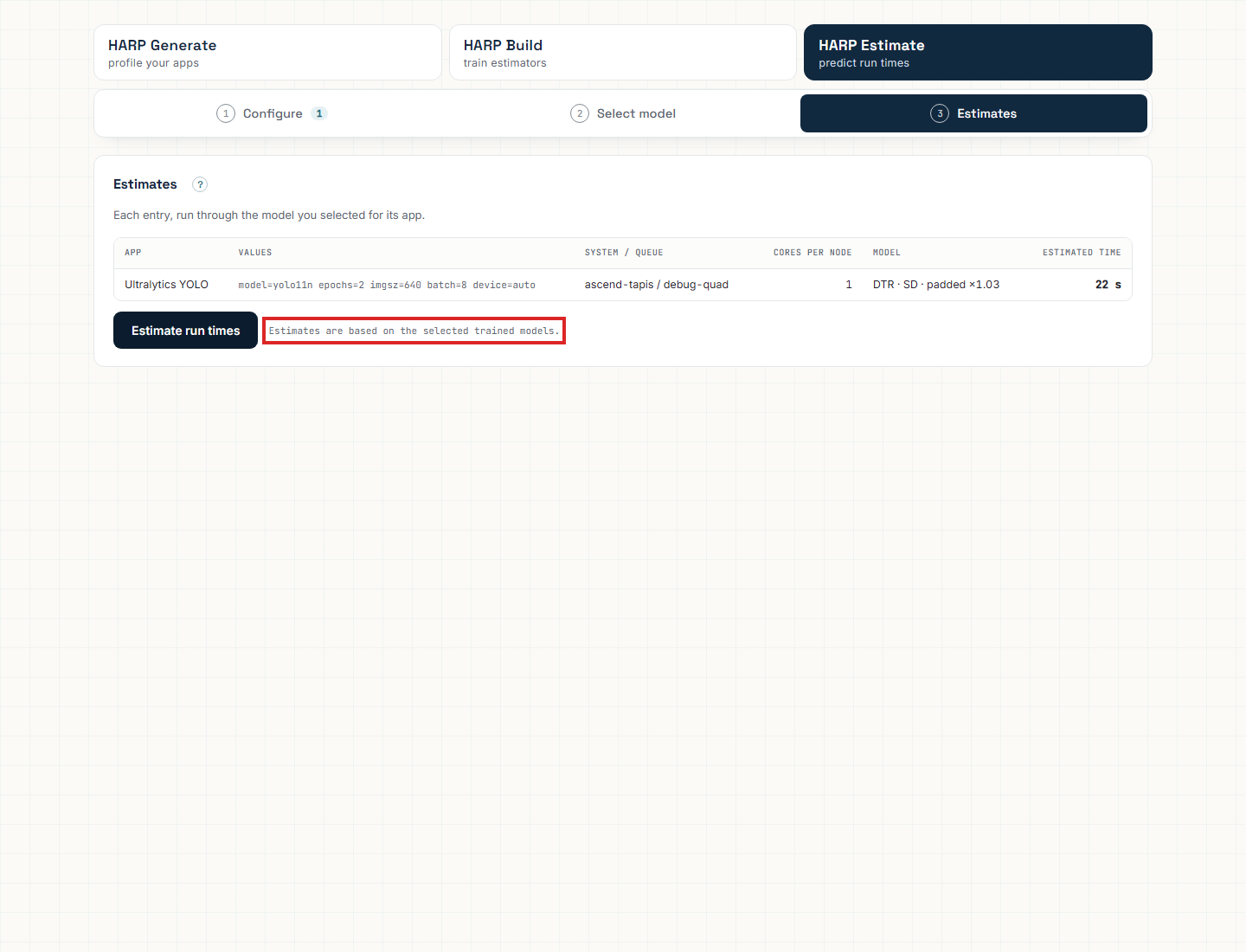
Open Estimates, select Estimate run times, and wait for the prediction to appear. The result is a model prediction, not a scheduler reservation or guarantee.
Expected result
The three profiling sweeps provide enough successful SD, FS, and test_data rows to train at least one estimator. The build produces saved model artifacts and scores, and Estimate returns a predicted runtime for the new app/partition configuration.
If a job fails
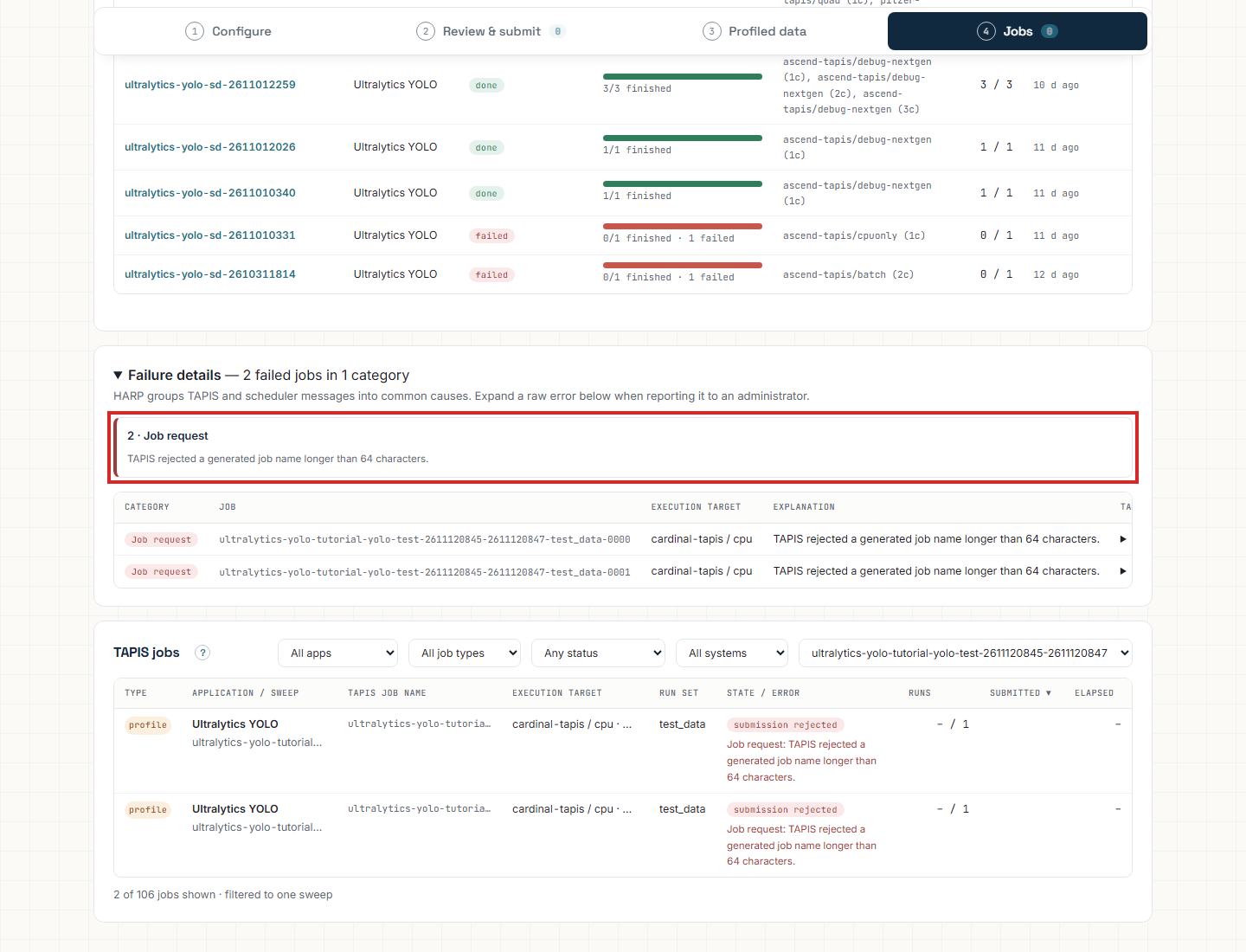
Open Generate → Jobs → Failure details. HARP presents a concise cause and identifies Tapis configuration problems separately from resource, allocation, container, and application failures. Preserve the Tapis job ID and sanitized raw detail when reporting the issue; do not include a token.